
Expert Mode is the “Thinks hard” option in the grok.com picker, and Grok Bot has none.
- Select Expert in the picker
- Attach files to ask about
- Check your weekly usage
- Bots have no mode picker
New to Grok Bot?
Get two weeks free on us.
Short answer
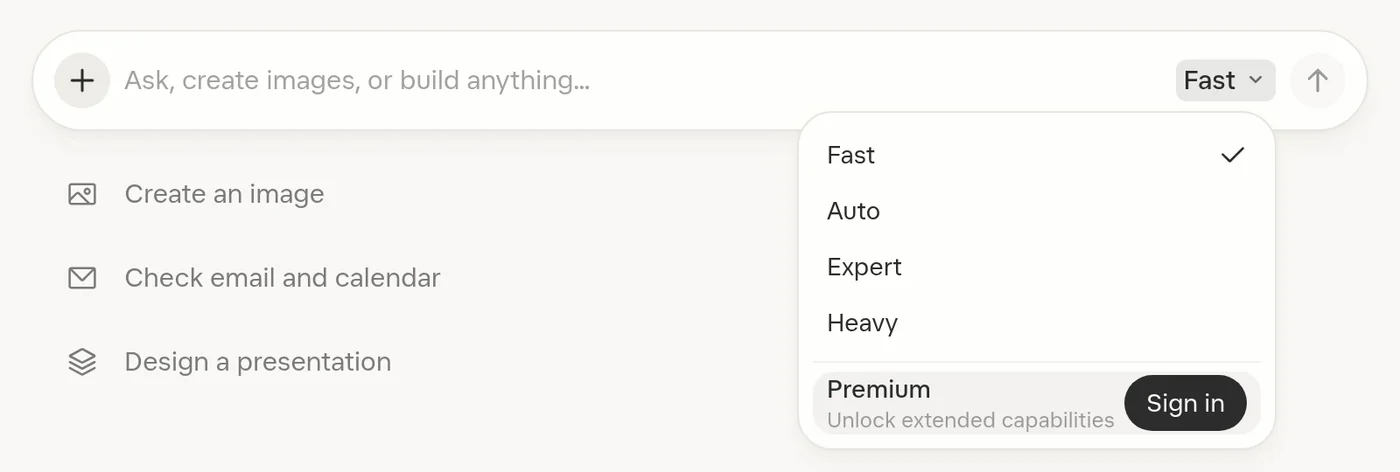
Grok Expert mode is the “Thinks hard” option in the Grok mode picker, powered by Grok 4.7. Choose it for a coding or knowledge-work question. xAI describes Grok 4.7 as its most capable model for coding and knowledge work; it also powers Fast for paid subscribers.
What Does Expert Mode Do?
The picker offers four ways to choose how Grok responds. Auto chooses between Fast and Expert; Heavy is described as a team of experts.
| Mode | Picker description | A place to start |
|---|---|---|
| Fast | Quick responses | A short question or rewrite |
| Auto | Chooses Fast or Expert | Let Grok choose for the request |
| Expert | Thinks hard · Grok 4.7 | A problem with several connected steps |
| Heavy | Team of Experts · Grok 4.7 | A difficult problem to explore |
For coding questions, include the relevant code and error. For comparisons, provide your requirements.
How Do I Select Expert?
- Open Grok at grok.com and find the mode picker next to the message composer.
- Open the picker and select Expert.
- Enter your question and send it.
- To change modes, open the picker again or use the composer shortcuts below.
| Shortcut | What it does |
|---|---|
| Shift+Tab | Cycles model modes in the composer |
| Cmd+/ | Opens the model picker |
When signed out, Fast is available and Auto, Expert and Heavy prompt an upgrade. Check the picker on your account for its available choices. Conversations, settings and subscriptions sync across the web, iOS and Android when you sign in with the same account.
Can Expert Work With Files?
Grok supports file uploads in chats on the web and mobile apps. You can ask it to summarize a PDF, extract a table, compare documents, examine a spreadsheet or discuss an image and code together.
- In a chat, click or tap + next to the message input.
- Choose files from your device. On the web, you can also drag and drop them.
- Attach multiple files to one message if needed, then ask your question.
- Grok processes the files and confirms a successful upload before responding.
| Upload detail | Limit or behavior |
|---|---|
| Web | Up to about 100 files at once |
| Android | Up to 20 files at once |
| iOS | Multiple files supported |
| Most files | Up to 150 MB per file; limits can vary by platform or subscription |
Common formats include PDF, DOCX, CSV, XLSX, PPTX, images, code, audio and video. For a PDF over 100 pages, identify the actual page numbers you want examined. Grok may summarize very long files or handle them in sections.
What If an Upload Fails?
File support can differ by platform. Grok extracts text from most documents, but embedded images in non-PDF files may not be processed visually. Audio and video transcription quality can vary.
- Unsupported file type: Convert the file to a supported format such as PDF or TXT, or try another platform.
- Upload fails or says “Tap to retry”: Check its size and try a smaller file or another format.
- Attachment cannot be loaded: Switch platforms or convert the file.
- Large request is slow: Break it into follow-up questions. Use Help if the problem continues.
How Does Expert Usage Work?
Paid Grok plans include a shared weekly allowance across Grok products. Different activities use different amounts depending on the computing work involved: a chat message uses little, while a high-quality video or long coding task uses more.
- Open Settings → Usage on the web or mobile.
- Read the progress bar for the percentage of your allowance used.
- Check the breakdown for API, Build, Chat, image and video generation, and Voice.
- Find the weekly reset date and time and any Extra Usage Credits balance.
The X Subscription gives each paid seat a weekly pool for eligible first-party use across supported Grok and Cursor surfaces. On self-serve team plans, each seat has its own pool; seats do not share those pools. See Grok pricing and free access and Grok vs ChatGPT.
What Happens at the Limit?
Paid features pause when the weekly allowance and available extra credits run out. They resume at reset or when you buy more credits. Free-tier Chat and Voice limits remain available separately and reset on their own schedule.
| Choice | How it works |
|---|---|
| Buy credits | On the web, buy from $5 in the Usage tab; credits arrive immediately and are used after included weekly usage. |
| Auto Top Up | Choose a top-up amount and monthly cap to add credits when the balance gets low. |
| Upgrade | A higher plan provides more weekly usage and costs less per action than repeated top-ups. |
Credits expire one year after purchase unless otherwise stated. They use standard rates, so an action costs more than its effective rate within the included weekly allowance.
Why Does Grok Ask Me to Upgrade?
First check that you are signed in with the account used to purchase the subscription. A subscription is tied to that account, so a different Apple, X, Google or email login can make it appear missing on another device.
- If you subscribed using Apple’s private relay email, sign in with the same Apple sign-in used to subscribe.
- For an X account, open Settings → Account → Connect your X Account on grok.com and complete the X sign-in.
- If the subscription appears active but upgrade prompts continue, restart the app, sign out and clear its cache. Confirm the subscription in the app and in your app store’s subscriptions list.
- For web SuperGrok billing, open Settings → Billing. If Manage Subscription does not open, try an incognito window or another browser; an extension or ad blocker can interfere.
Is Expert the Same as the API?
Expert is a choice in the Grok chat picker. Developers can also use Grok 4.7 through the API, where the model has a 500,000-token context window and token-based pricing. Those API figures do not establish a chat-mode limit or price.
| API prompt size | Input per million tokens | Cached input per million | Output per million |
|---|---|---|---|
| Under 200,000 tokens | $2 | $0.50 | $6 |
| 200,000 tokens or more | $4 | $1 | $12 |
At the higher threshold, the higher rates apply to all tokens in the request. API access to current events requires search tools; this is an API setting, not an Expert picker control.
Are Bot and Build Modes Different?
Grok Bot and Grok Build CLI are separate products with different controls. Grok Bot has no mode or model picker. See changing the Bot model for details.
| Product | Control |
|---|---|
| Grok chat | Fast, Auto, Expert and Heavy select response behavior. |
| Grok Bot | There is no mode or model picker. |
| Grok Build CLI | Plan, Auto and Always-approve are session modes; Shift+Tab cycles them. |
In Build CLI, Plan lets you review a plan while the parent session’s edit tools are limited to the plan file. Shell commands and subagents can still write files, subject to permissions. Auto classifies safe tools for approval, while Always-approve is another session choice. See Grok Build CLI for its terminal controls.
FAQ
What Is Grok Expert Mode?
Quick answer: Expert is the Grok mode labeled “Thinks hard,” powered by Grok 4.7. Select it in the picker next to the composer.
How Do I Use Grok AI Expert Mode?
Quick answer: Open the mode picker next to the composer and choose Expert. Enter a question and continue with follow-ups in the same chat.
Can I Use Expert While Signed Out?
Quick answer: Signed-out access offers Fast, while Expert prompts an upgrade. Check the picker after signing in to see the choices available on your account.
Does Expert Have a Separate Weekly Allowance?
Quick answer: Paid Grok usage draws from a shared weekly pool across products. Open Settings → Usage to see your usage and reset time.
Does Grok Bot Have Expert Mode?
Quick answer: Grok Bot has no mode or model picker. It is a separate product.
What Does Auto Choose?
Quick answer: Auto chooses Fast or Expert for a request. Choose it in the picker when you want Grok to make that choice.
Swarm School is an independent site. We’re not affiliated with xAI or Cursor.
Sources
- Official documentation https://docs.x.ai/grok/faq
- Official documentation https://docs.x.ai/x-subscription/usage-limits
- Official documentation https://docs.x.ai/developers/models
- Official documentation https://docs.x.ai/build/features/permissions.md
- Grok release notes https://grok.com/release-notes
- Grok overview https://docs.x.ai/grok/overview
- Grok Build modes https://docs.x.ai/build/modes-and-commands
Swarm School is independent and not affiliated with Grok Bot’s makers. Features change; check the official docs for current details.
Related Guides
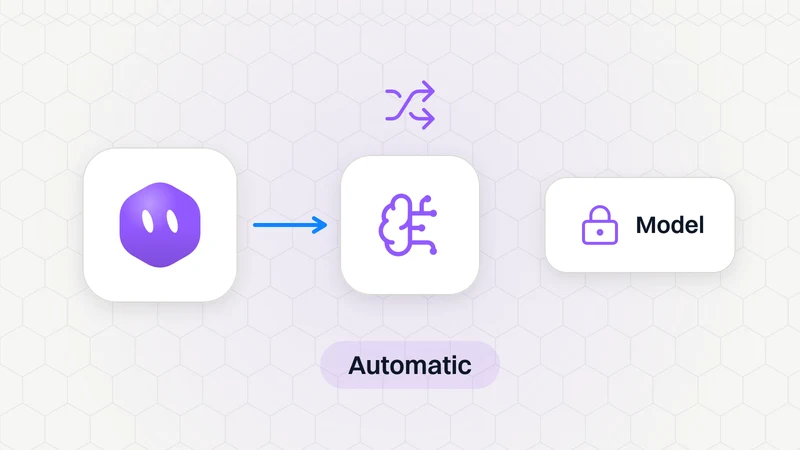
How Do I Change the Model in Grok Bot?
You can't. Grok Bot has no model picker. It picks the model it expects to do each task best, and you can't choose, request or block a specific model.

Is Grok AI Free? Plans, SuperGrok and Grok Bot
Grok is free to start; paid plans are Plus $8, Premium $30, Super $100 and Ultra $200 a month. Grok Bot needs Premium or higher (or Teams, Enterprise or a paid Cursor plan).



Grok Build CLI: Install, Commands and How It Compares to Claude Code
Install Grok Build CLI, learn its commands and modes, and compare its coding workflow and price with Claude Code.



Grok vs ChatGPT: Differences, Prices and Which to Pick (2026)
Compare Grok vs ChatGPT prices, reasoning, coding and agents, then choose the plan that fits your work and budget.