Short answer
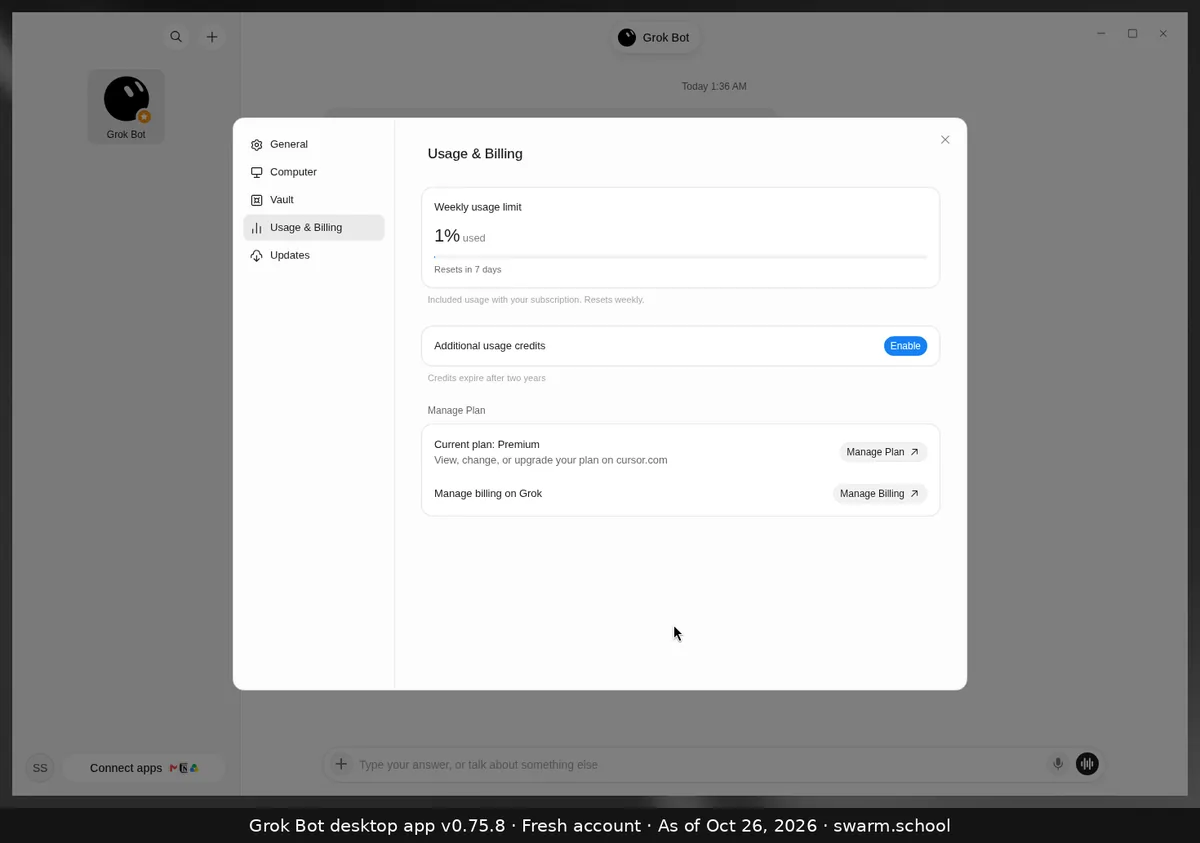
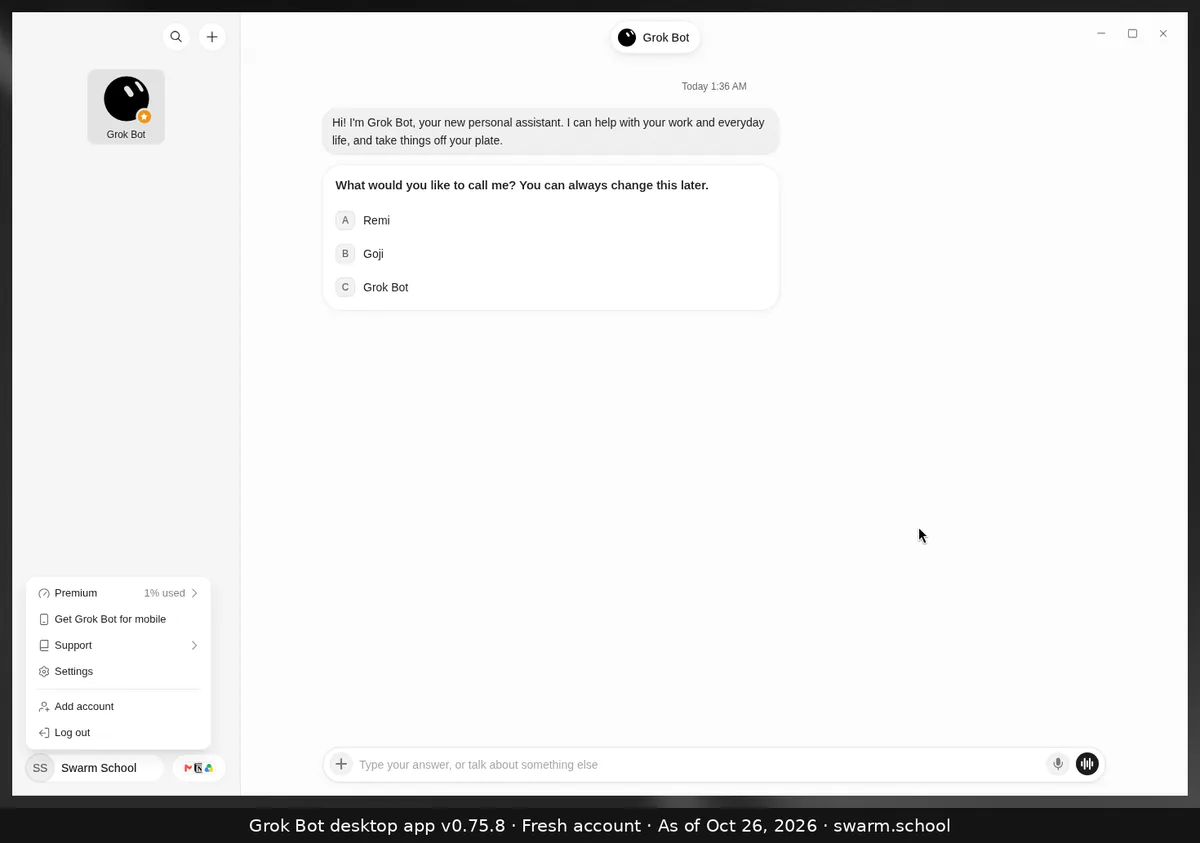
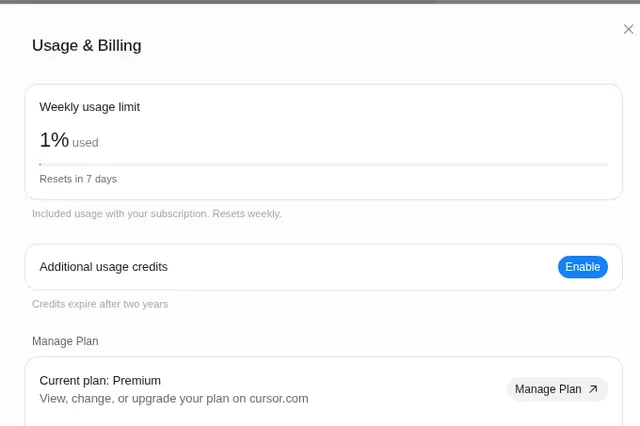
Open Settings → Usage & Billing. The Weekly usage limit card shows how much of this week’s included usage you’ve used, as a percentage, and how many days until it resets. For a quick look, click your name at the bottom left: the account menu shows your plan and the same ”% used”.
As of Oct 26, 2026 (Grok Bot desktop app v0.75.8). Screens are from a fresh Swarm School account.
How to get there
- Press Ctrl+, (Cmd+, on Mac), or click your name at the bottom left and choose Settings.
- Choose Usage & Billing in the left column.
- Read the Weekly usage limit card: the % used, the bar and the reset countdown.
Good to know
- You see a percentage, not a token count or a dollar figure. Our guide why Grok Bot shows a % bar explains why.
- On The X Subscription, the same weekly pool is shared with Grok and Cursor, and xAI’s docs say your live usage view also shows the next reset date. You can check it on the web at grok.com/dashboard under Usage.
- Our fresh account showed 1% after setup and a first chat.
Sources
Swarm School is independent and not affiliated with Grok Bot’s makers. Features change; check the official docs for current details.
Related guides
- When does the Grok Bot usage limit reset?Grok Bot's included usage resets weekly. Settings → Usage & Billing shows a countdown…
- What happens when Grok Bot hits its weekly limit?When your weekly Grok Bot usage hits 100%, your Bots stop until the reset, unless…
- What are "Additional usage credits" in Grok Bot?Additional usage credits are prepaid, paid credit that keeps Grok Bot working after…
- Where are Grok Bot's settings?Press Ctrl+, (Cmd+, on Mac) or open the account menu at the bottom left and choose…