






Grok Bot has no WhatsApp connector, so use the phone app or X Chat.
- No official WhatsApp connector
- Set up the phone app
- Tag @bot on X
- Avoid fake WhatsApp numbers
New to Grok Bot?
Get two weeks free on us.
Short answer
Grok Bot doesn’t have a WhatsApp connector, and xAI doesn’t run a Grok number on WhatsApp. To message your Bots from a phone, use the Grok Bot app or, if your account is eligible, X Chat. A third-party bridge is an advanced custom connection, not an official WhatsApp channel.
Where Can I Message Grok?
| Product or channel | Where to find it |
|---|---|
| Grok | grok.com, the iOS and Android apps, and Grok on X |
| Grok Bot | Desktop and phone apps, and the Bots sidebar on grok.com |
| X Chat | Your Bots in the X app or on x.com, for eligible personal accounts |
| X posts | Tag @bot to give your own Bot a task |
| Team Bots | Slack or Microsoft Teams; Teams requires a published Team Bot and admin enablement |
| A Bot can have its own address at mail.grokbot.com |
For other messaging services, see the Telegram and Discord guides.
Set Up Grok Bot on Mobile
The phone app shares Bots, conversations, routines, connectors and the cloud computer with desktop. Work continues when you close the app. You need internet and an eligible plan; Premium, Super and Ultra on The X Subscription include Grok Bot, while Plus does not.
- Install Grok Bot on an iPhone with iOS 18 or later, or a phone with Android 9 or later. The iOS app also runs on iPad with iPadOS 18 or later.
- Open the app and sign in with the same account you use on desktop or web. On Android, Log In or Sign Up opens a browser; on iPhone, choose a sign-in option on screen.
- If prompted for an authenticator code, enter it or choose Use the browser instead. Existing users see their synced Bot list.
Send Messages and Files
Open a Bot conversation to send text, take or attach a photo, choose a file, reply in a thread or react. Drafts stay with each conversation.
- To send from another app, open its share sheet and choose Grok Bot. Pick a Bot, optionally choose Add a note, then tap Send.
- iPhone sharing accepts photos, files, links and text. Android sharing accepts text, photos, videos, audio and PDFs.
- If the share cannot be sent there, choose Open in Grok Bot to finish in the app.
Talk to a Bot by Voice
Dictation turns speech into text you can edit before sending; the Bot replies in text. Voice chat is a live spoken conversation with one Bot.
- For dictation, choose Start dictation on your phone. On desktop, choose Start voice input or press
Cmd/Ctrl+Dwith the prompt focused. - For a call, stop dictation, leave the composer empty and choose Start voice chat. Allow microphone access if asked.
- During the call, use Mute, Unmute, Hang up or Show transcript. In your own Bot’s call, Show settings lets you change voice, speed and language.
- After the call, open its Voice chat card to read the full transcript. In the Grok Bot phone app, a phone call, FaceTime or another app taking over audio ends the voice chat. Start it again when finished. Short Android interruptions, such as navigation prompts, only pause it.
Only one voice chat runs at a time, and group chats cannot start one. If the button is missing, clear the composer; if it is still missing, update the app.
Try X Chat With Your Bots
X Chat uses the same Bots as Grok Bot. It needs a plan with Grok Bot and a Grok account connected to a Cursor account. Connecting from X Chat requires a personal account. It is unavailable with a company-managed email domain, a Cursor team account or a legacy request-based Cursor plan.
| If you run into this | Try this |
|---|---|
| Bots do not appear | Update the X app, then quit and reopen it. |
| Your Grok email is unverified | Verify the email on Grok and try again. |
| A different Bot appears | X Chat uses the Grok account connected to X. Sign in to the intended Grok account at accounts.x.ai, sign in to X in the same browser, then open x.com/i/jf/grok/entry to link it. |
| Company domain or Cursor team account | Use the Grok Bot app instead. |
Send a Task From X
Tagging @bot hands a post to your main Bot; it is different from a chat in X Chat. The X reply confirms the request, while work and results stay in the Bot’s conversation. The request uses your Grok Bot usage.
- On grok.com, open Settings → Account and choose Connect next to X Account.
- Set up Grok Bot on that account and create at least one Bot of your own. A Bot shared with you cannot take tagged requests.
- Tag @bot in your post or reply. Your Bot receives that post, the post you reply to and quoted posts, including still photos.
- Open the Bot conversation to follow the work. If @bot does not reply, the Bot did not receive the request.
Tagging is unavailable for accounts based in Australia, the UK, the EU, Iceland, Liechtenstein and Norway. A post that also tags @grok, or a post in the supplied context containing a video or GIF, can also prevent a reply.
Can WhatsApp Use a Custom Bridge?
A third-party MCP server or API is an advanced possible route, not an official connector. Its access depends on the server and permissions you give it. See Bot connectors and Grok chat connectors; they are set up separately.
- In the desktop Grok Bot app, open Connect apps and choose Add a custom connector.
- Choose Remote HTTPS or Command and enter the details for a server you trust.
- Review access and ask the Bot to seek approval before sending or sharing information. A connection with chat access can read what you make available; sending access can let it send messages.
When a Bot prepares an email or Slack message, an editable draft can show Needs approval. Review recipients and content, then choose Send or Discard.
Avoid Fake Grok Numbers
xAI sells subscriptions directly. A WhatsApp number selling Grok access is not an official sales channel.
For help, email support@x.ai or see the Grok support guide. On the phone app, Settings → Send Feedback also lets you report a problem.
FAQ
Is Grok on WhatsApp?
Quick answer: xAI does not run an official Grok number on WhatsApp. You can use Grok on grok.com, in its phone apps or on X.
Is There a Grok Bot WhatsApp Connector?
Quick answer: Grok Bot has no official WhatsApp connector. Its phone app and eligible X Chat accounts offer ways to message your Bots.
Can a Custom WhatsApp Bridge Work?
Quick answer: A third-party MCP server or API is an advanced possible route. Review the server and its permissions before connecting it.
Does Grok Bot Keep Working When I Close My Phone?
Quick answer: Background work runs on the cloud computer and continues when you close the app. Sign in with the same account to see synced conversations across devices.
Does xAI Sell Subscriptions Through WhatsApp?
Quick answer: xAI sells subscriptions directly, so a WhatsApp number selling Grok access is not an official sales channel. Contact support@x.ai for product support.
Swarm School is an independent site. We’re not affiliated with xAI or Cursor.
Sources
- Official documentation https://docs.x.ai/grok-bot/chat-and-collaboration
- Official documentation https://docs.x.ai/grok-bot/mobile
- Official documentation https://docs.x.ai/grok-bot/tag-on-x
- Grok Bot FAQ https://docs.x.ai/grok-bot/faq
- Grok Bot overview https://docs.x.ai/grok-bot/overview
- xAI pricing https://x.ai/pricing
- Microsoft Teams https://docs.x.ai/grok-bot/microsoft-teams
Swarm School is independent and not affiliated with Grok Bot’s makers. Features change; check the official docs for current details.
Related Guides
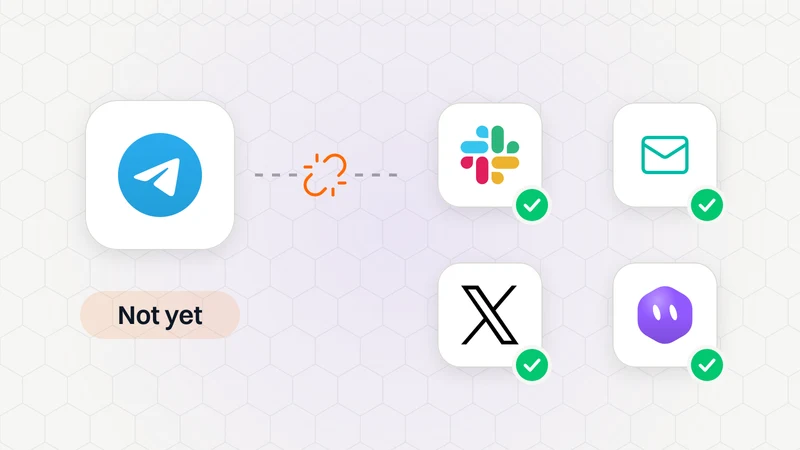
Can Grok Bot Work in Telegram?
Grok Bot has no official Telegram connection yet. Here's what does exist, the official ways to reach your Bots, and how to avoid fake Grok bots on Telegram.
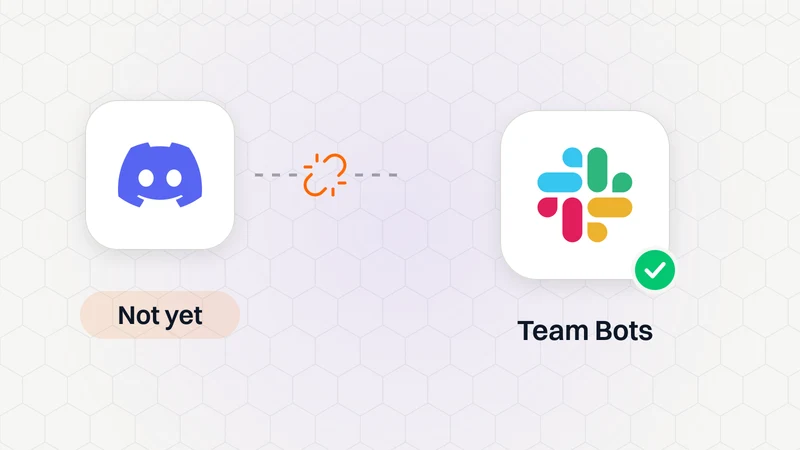
Grok Bot on Discord: What Works and What Doesn't
Grok Bot has no official Discord connection. Here's what is official, what community bridges do, and how to stay safe if you try one.

Grok Bot Connectors: What You Can Connect
Every Grok Bot connector we could confirm in xAI's and Cursor's docs, what each one can do, and how to connect apps without giving your Bots too much access.






Grok Connectors Explained: What They Are and How to Add Them
Understand Grok connectors, compare built-in and custom services, and follow the steps to connect your accounts safely.