
For a Grok Bot problem, send feedback in the app or email support@x.ai.
- Send feedback in the app
- Email support@x.ai
- Copy the request ID
- Find your billing route
New to Grok Bot?
Get two weeks free on us.
Short answer
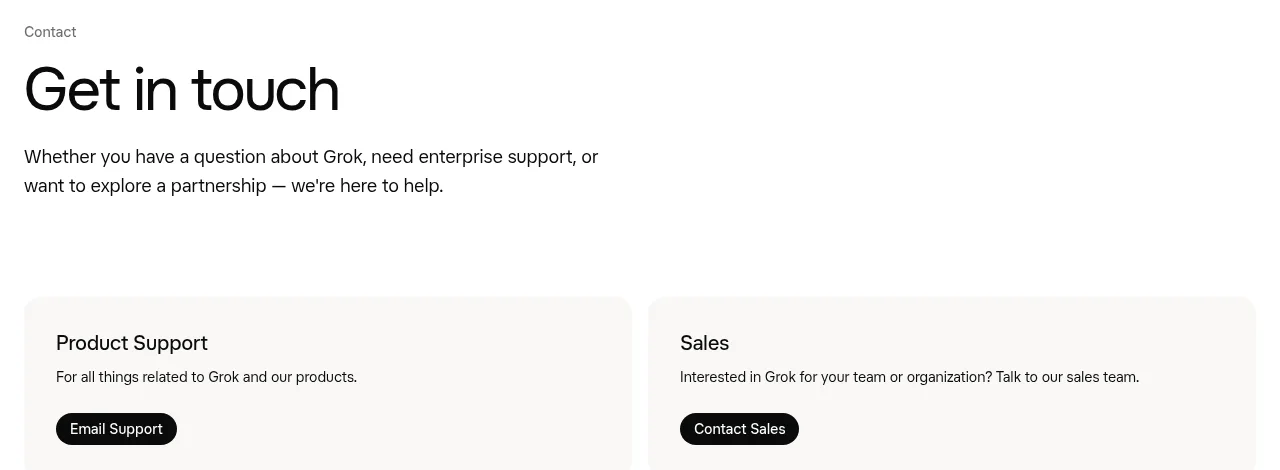
For Grok product support, email support@x.ai or send feedback in the app. For a billing problem, the right route depends on where you purchased your subscription.
| Your problem | Where to go |
|---|---|
| Grok app or Grok Bot issue | In-app feedback or support@x.ai |
| Charge or invoice | Billing & invoices, or reply to your receipt |
| Grok or SuperGrok refund | xAI refund request for web or Google Play; Apple for App Store purchases |
| X Premium purchased on X | X handles refunds through its Help Center |
| Hacked account | Contact support with your user ID and proof of ownership |
How Do I Contact Grok Support?
Use Feedback in Grok to report a bug or ask for a reply from the support team. For billing, you can also reply to your receipt email. Include enough detail to identify the account and the issue:
- Your account email and platform: web, iOS or Android.
- Your browser or operating system, plus what happened.
- A screenshot or conversation share link for a product issue.
- The invoice or receipt number for a billing issue.
How Do I Contact Grok Bot Support?
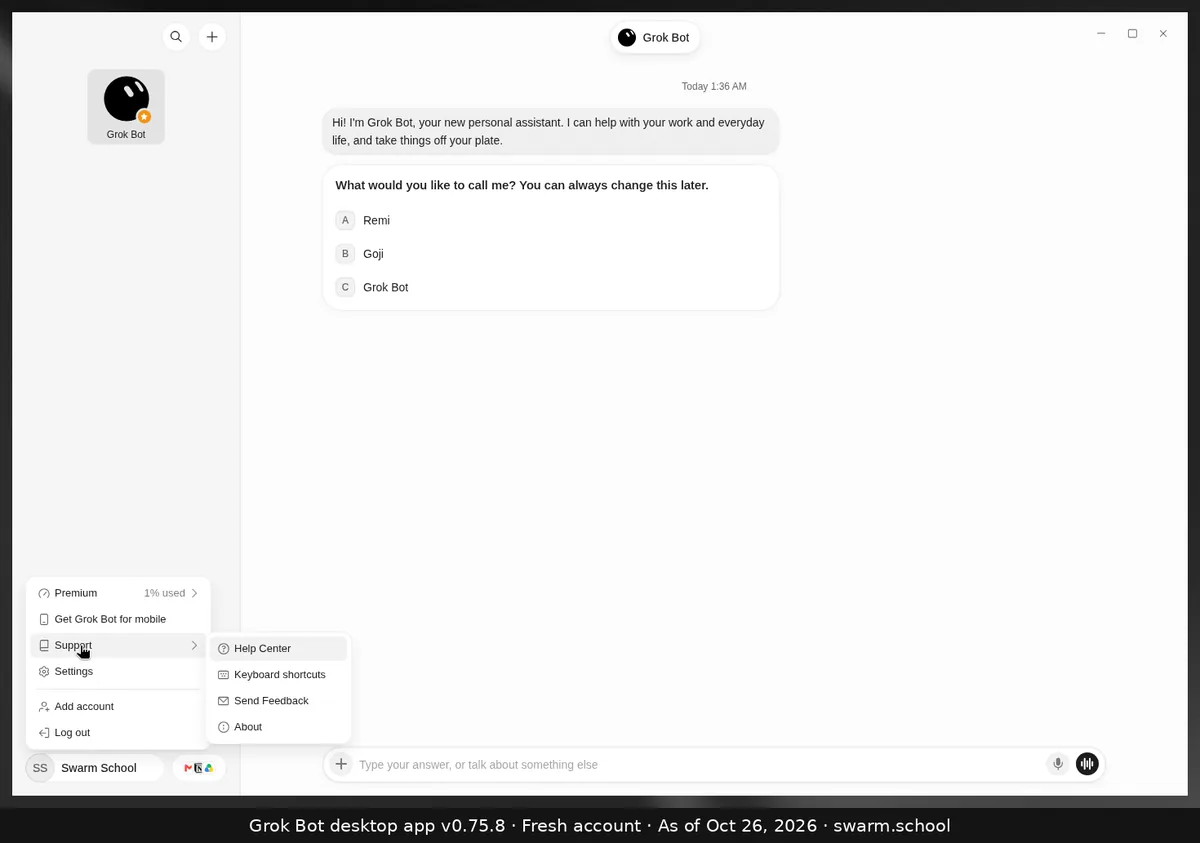
For a Bot issue, send feedback from the affected conversation or email support@x.ai from the email on your Bot account. Billing and cancellation questions go to the same address.
- On desktop, open account menu → Support → Send Feedback. On Mac, Help → Send Feedback also works. Keep Include current conversation ID on.
- On a phone, open Settings → Send Feedback and keep Include Bot ID on.
- Include your account email, platform, what you were doing and the Bot or routine name.
- For a particular message, right-click it and choose Copy request ID. To collect app information, choose account menu → Support → About → Copy version info.
For legacy Cursor plans and common errors, see Grok Bot support.
Check a Bot Problem Before Contacting Support
A Bot can keep working in the cloud while your app is disconnected. Check these signs:
| What you see | What to check |
|---|---|
| Sign-in loop | Keep the app open during browser sign-in, then return to it. If it continues, try a private browser window and include the exact error and steps tried in your report. |
| Bot failed to respond | Check the Grok Bot row on the status page. If the computer is connected and the same prompt still fails, send support the error title, request ID and a screenshot of computer status. |
| Missing Bot | Open Hidden Bots on desktop or Show Hidden Bots on a phone, and check the same account on another device. If it is still missing, send support its name and a screenshot of the sidebar. |
| Reconnecting | Wait and choose Retry. |
See service troubleshooting for help distinguishing a service problem from a connection problem.
Where Do I Manage Grok Billing?
For The X Subscription, open Billing & invoices. On a team, only admins who manage billing can see that page. Check the charge before contacting support:
- Look at Current plan for your plan and renewal date. Open its options to change or cancel the plan.
- Under Payment details, add or remove a payment method or change the default.
- Open Invoices, filter by month or status, and select the download icon. Both subscription charges and credit top-ups appear there.
- Open Usage in the dashboard sidebar to review usage.
For older web SuperGrok subscriptions, open Settings → Billing or the billing page. If Manage Subscription fails, try a private window or another browser. See Grok Bot pricing.
How Do I Cancel a Subscription?
Cancel through the place that bills the subscription. Signing in or linking accounts alone does not cancel a plan. For The X Subscription, cancel at least 24 hours before renewal to avoid the next charge.
| Purchase | Cancellation route |
|---|---|
| Direct-billed X Subscription | On Billing & invoices, open the current plan options, choose cancel and follow the prompts. |
| Purchased on X | Cancel in X. |
| Purchased through Google Play | Cancel in the Google Play Store. |
| Apple-billed Cursor | On iPhone or iPad, open Settings → your name → Subscriptions → Cursor, then choose the cancellation option. |
Canceling The X Subscription does not cancel a separate Apple-billed Cursor subscription. After switching, check Google Play for Grok, Grok Bot or X Premium subscriptions that still renew and cancel them there.
How Do I Request a Refund?
The purchase location determines who handles a Grok or SuperGrok refund. Sign in with the account used for the subscription when you submit the xAI form.
| Purchase | Refund route |
|---|---|
| Web or Google Play | Submit the xAI refund request. Approved refunds go back to the original payment method. |
| Apple App Store | Request the refund directly from Apple. Apple decides on refunds for its purchases. |
| X Premium on X | Use the X refund form. |
| API credits | API credits are non-refundable. |
When eligible direct-billed subscriptions are replaced by The X Subscription, a refund for unused time goes to the original payment method, not toward the new plan. Contact support if a charge or invoice looks wrong.
Why Is My Subscription Missing?
A subscription belongs to the account used to buy it. If it appears on one device but not another, check the sign-in method before assuming you paid twice.
- If you used Apple’s Hide My Email, sign in with Apple using the original Apple ID. Entering the private relay address through another sign-in method does not identify that subscription.
- If a previous plan, team or history is missing, sign out and try the sign-in method you used before. Contact support if it is still missing.
- If you have charges on two platforms, contact support to sort out a refund. For work SSO problems, contact your workspace admin or support.
Why Did Paid Usage Stop?
A paid seat on The X Subscription has a weekly pool for eligible first-party usage across supported Grok and Cursor products. The usage view shows the next reset; different activities draw different amounts from the pool.
- Open Settings → Usage in Grok to see the percentage used, product breakdown, reset date and time, and any Extra Usage Credits balance.
- When the weekly allowance runs out, free-tier Chat and Voice limits remain available on their own reset schedules. You can also buy extra credits on the web or upgrade for a larger allowance.
- For billing controls, find Additional usage credits on Billing & invoices. Set auto top-up sets a trigger balance and amount; Edit beside Monthly additional usage limit sets a spending cap.
Contact support through the app or grok.com if usage or top-ups do not look right.
What If My Account Is Compromised?
Contact support immediately if someone changes your account email or takes over your account. Provide your user ID and details proving ownership. Support can cancel the compromised subscription or delete the account if your identity cannot be verified through email.
- Manage sign-in email at accounts.x.ai. For an Apple subscription, the login is tied to your Apple ID.
- Delete an account at xAI Accounts. You can restore it by logging in and confirming restoration within 30 days; deletion also removes API access on the same account.
- Use support@x.ai for product support. xAI sells subscriptions directly; see Grok on WhatsApp for more on suspicious offers.
FAQ
What Is the Grok Support Email?
Quick answer: Email support@x.ai for Grok product support. For Grok Bot, send the message from the email on your Bot account.
How Do I Contact Grok Customer Support?
Quick answer: Use Feedback in the product or email support@x.ai. For billing, you can also reply to your receipt email.
How Do I Request a Grok Refund?
Quick answer: Use the xAI refund form for a web or Google Play Grok purchase. Apple handles App Store refunds, while X handles refunds for X Premium bought on X.
Where Do I Cancel Grok Billing?
Quick answer: Cancel a direct-billed X Subscription from the current plan options under Billing & invoices. Manage X and Google Play purchases through those services. Cancel Apple-billed Cursor through Apple. For other App Store subscriptions, check Apple’s subscription settings.
What Should I Include in a Support Request?
Quick answer: Include your account email, platform and a description of the issue. Add an invoice number for billing or a screenshot or conversation link for a product issue.
Swarm School is an independent site. We’re not affiliated with xAI or Cursor.
Sources
- Official documentation https://docs.x.ai/grok-bot/troubleshooting.md
- Official documentation https://docs.x.ai/grok/faq.md
- Official documentation https://docs.x.ai/x-subscription/cancel.md
- xAI contact https://x.ai/contact
- Grok FAQ https://docs.x.ai/grok/faq
- Grok Bot troubleshooting https://docs.x.ai/grok-bot/troubleshooting
- Refund request https://accounts.x.ai/refund
- xAI pricing https://x.ai/pricing
- Official documentation https://docs.x.ai/x-subscription/manage
- Official documentation https://docs.x.ai/x-subscription/app-store
- Official documentation https://docs.x.ai/x-subscription/google-play
- Official documentation https://docs.x.ai/x-subscription/invoices-and-refunds
- Official documentation https://docs.x.ai/x-subscription/sign-in
- Official documentation https://docs.x.ai/x-subscription/usage-limits
- Official documentation https://docs.x.ai/x-subscription/payment-methods
- Official documentation https://docs.x.ai/x-subscription/x-premium
Swarm School is independent and not affiliated with Grok Bot’s makers. Features change; check the official docs for current details.
Related Guides
Grok Bot Error Messages Explained (and Fixes)
What Grok Bot error messages mean and how to fix them, from usage limits and unreachable computers to blocked apps, plus "Grok was unable to finish replying".

Is Grok AI Free? Plans, SuperGrok and Grok Bot
Grok is free to start; paid plans are Plus $8, Premium $30, Super $100 and Ultra $200 a month. Grok Bot needs Premium or higher (or Teams, Enterprise or a paid Cursor plan).
Is Grok Bot Down? How to Check and What to Do
Is Grok Bot down or is it just you? Check the official status page in 10 seconds, then work through the fixes xAI's docs recommend, in the right order.




Grok on WhatsApp: Is There an Official Grok Bot?
Find out whether Grok is on WhatsApp, explore official Bot channels, and learn how to spot fake numbers.