Short answer
Four habits cover most of it: leave Auto-review on, add Ask first rules for anything you can’t undo, keep passwords and codes out of chat, and make Bots report with links so you can check their work. Grok Bot asks before many actions by default. These habits make sure it asks about the ones that matter to you.
As of Oct 26, 2026 (Grok Bot desktop app v0.75.8).
1. Auto-review: leave it on
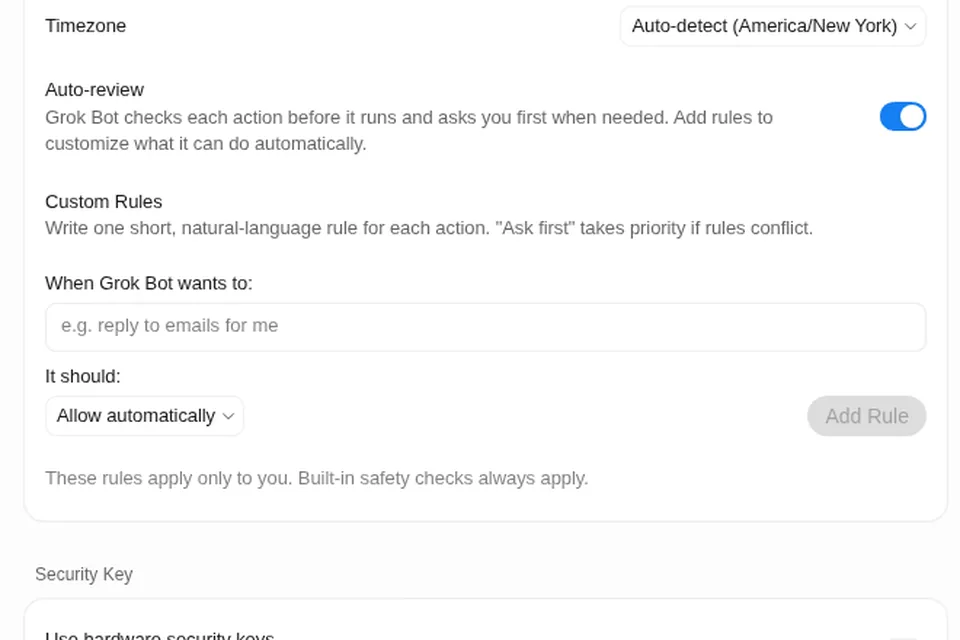
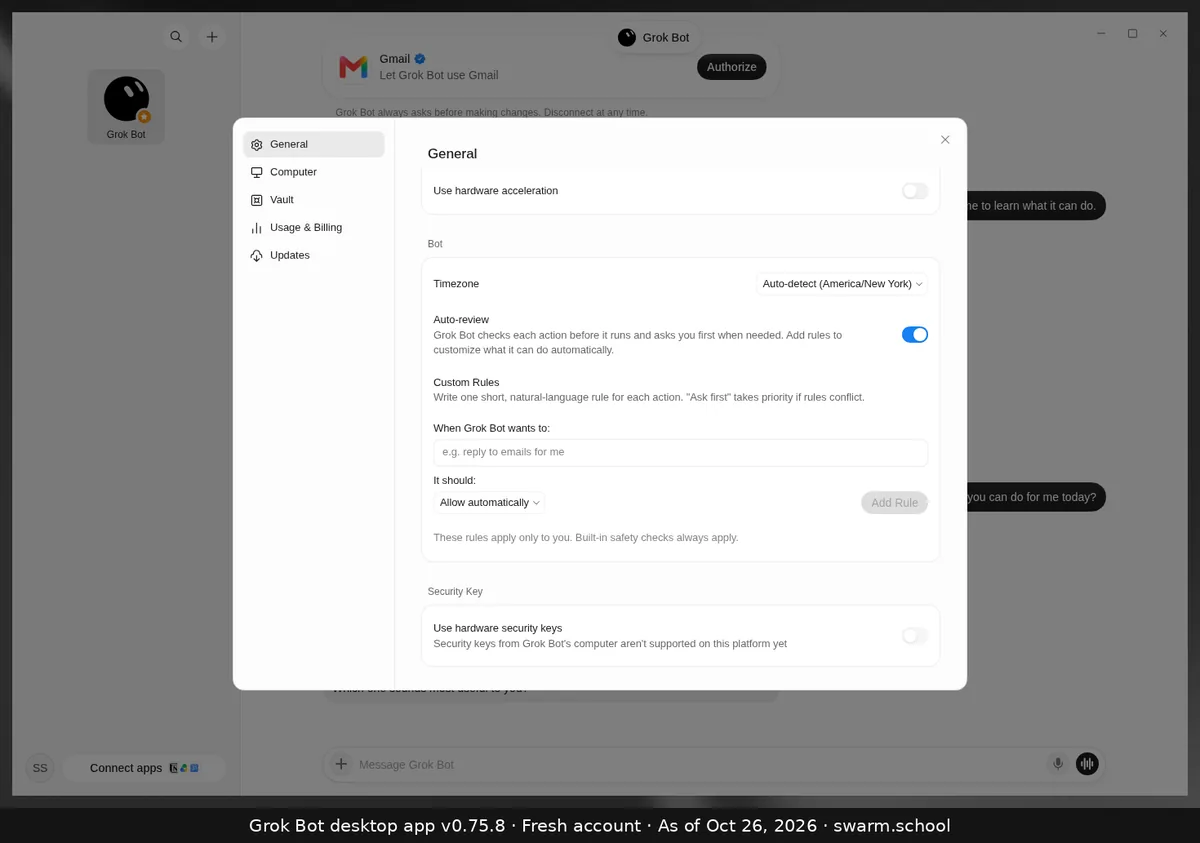
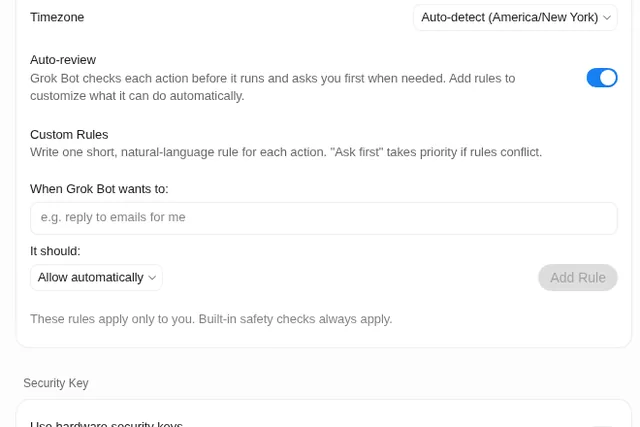
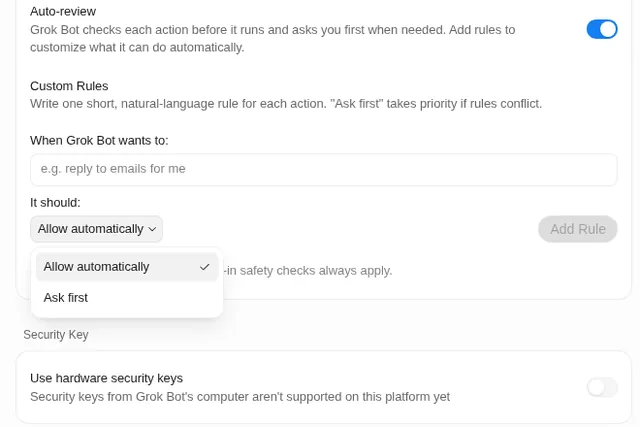
Auto-review checks each action before it runs and asks you first when needed. It’s in Settings → General → Bot, and it was on by default on our fresh account. More: What is Auto-review?
2. Add Ask first rules
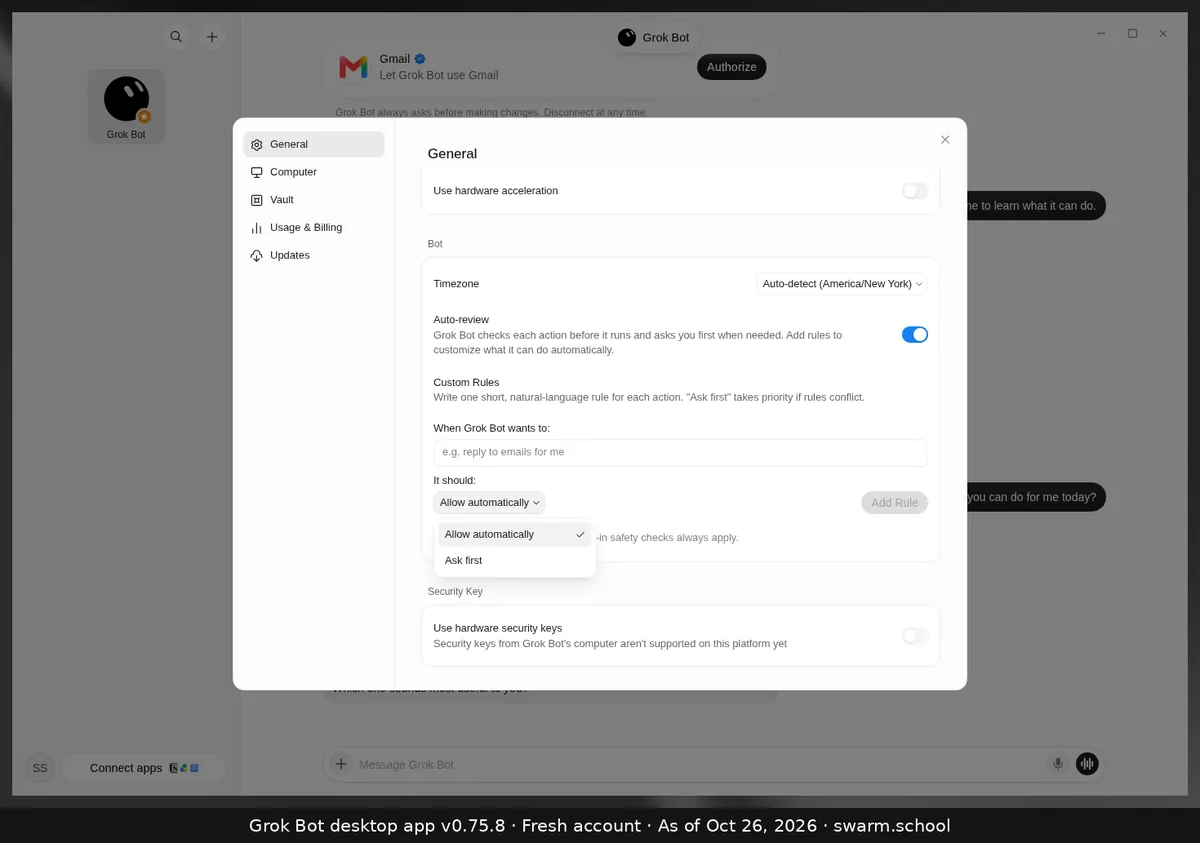
Write one plain rule per action and set it to Ask first. If rules conflict, Ask first wins. How-to: custom rules.
A starter approval policy you can copy:
| Always ask first | Fine to allow |
|---|---|
| Sending email, texts or DMs | Reading files and folders you own |
| Posting or publishing | Drafting (not sending) replies |
| Paying, buying or booking | Searching public websites |
| Deleting or changing records | Saving notes in its own folder |
Also tell each Bot its boundaries in chat and ask it to remember them, as xAI suggests.
3. Secrets never go in chat
Chat history is the wrong place for a password. Instead:
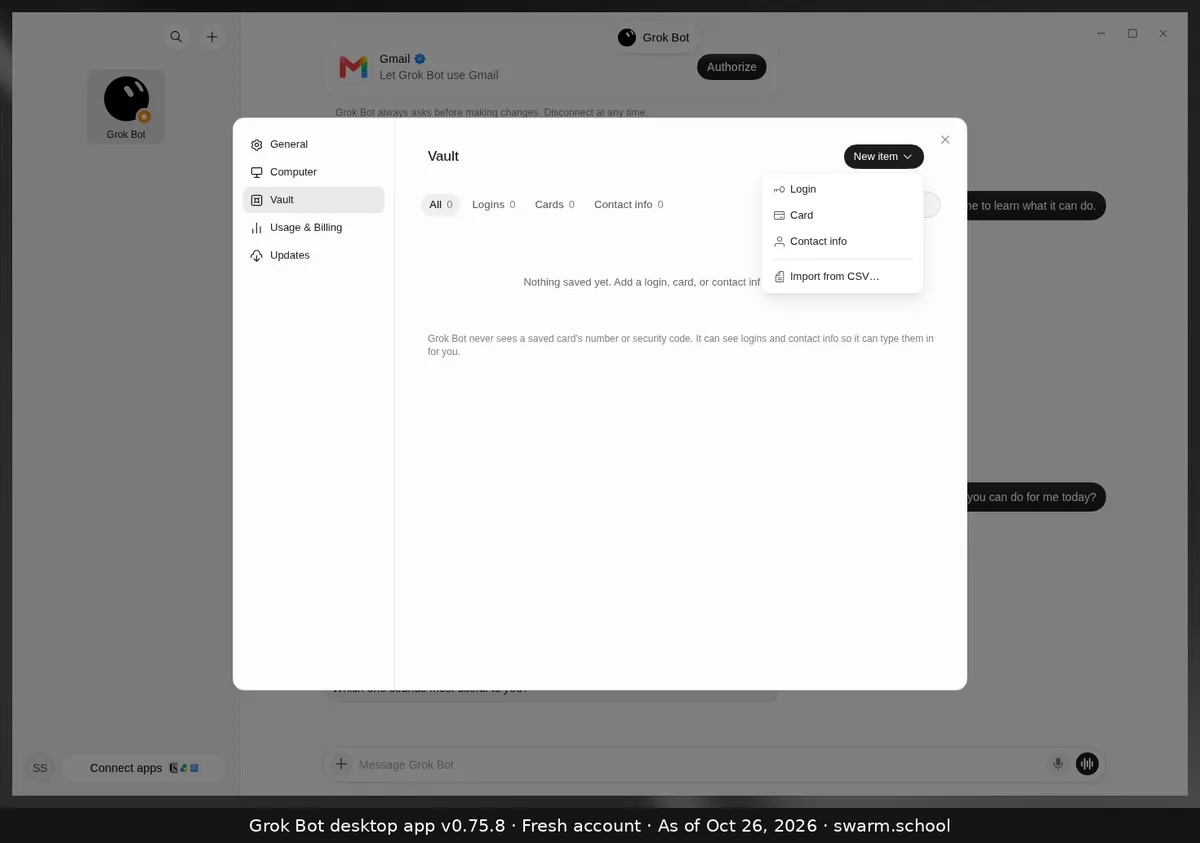
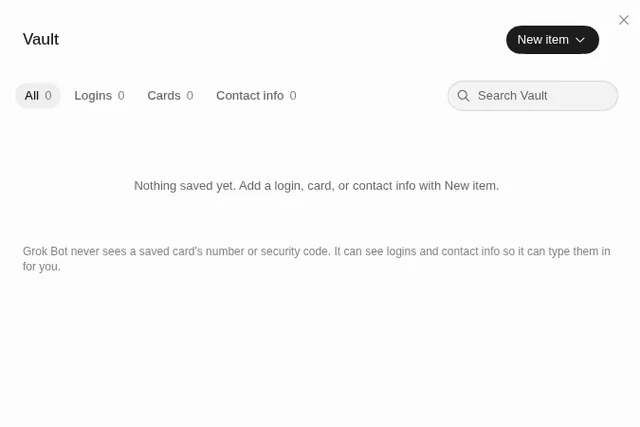
- The Vault (Settings → Vault) saves logins, cards and contact info. The app says Grok Bot never sees a saved card’s number or security code. It can see logins and contact info so it can type them in. See the Vault.
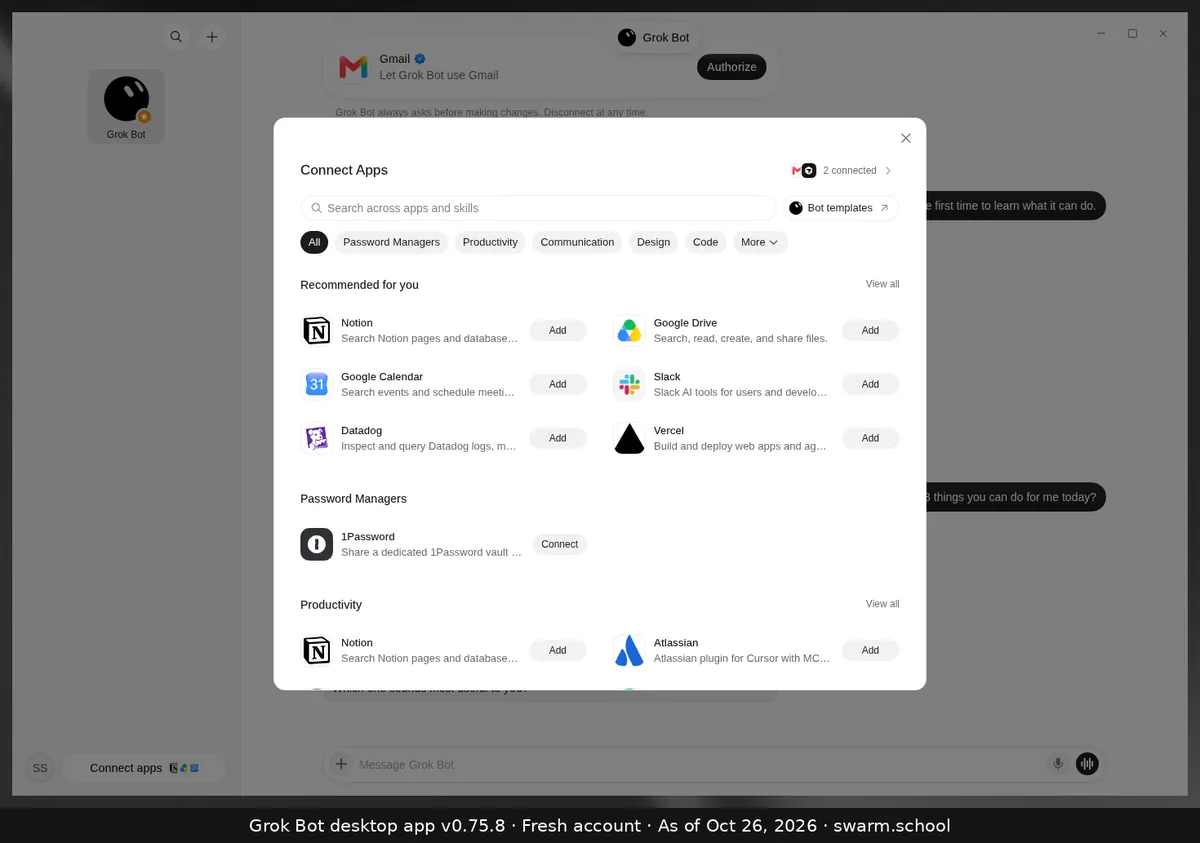
- 1Password is in Connect apps as a way to share a dedicated vault.
- Already pasted one? Change that password now, then tell the Bot to delete it from notes and memory.
4. Sign-ins and 2FA: you type, the Bot waits
xAI’s docs say passwords, two-factor codes and CAPTCHAs use a computer takeover:
- Take over the Bot’s computer when it reaches the login.
- Sign in and finish 2FA or the CAPTCHA yourself.
- Wait for the signed-in page to load, then hand back and tell the Bot to continue.
Never paste a one-time code into ordinary chat. Some sites will ask again for sensitive actions, and that can’t always be avoided.
5. Your own computer: off unless needed
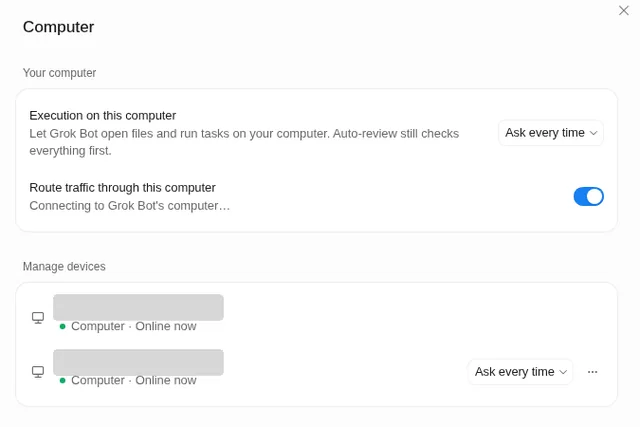
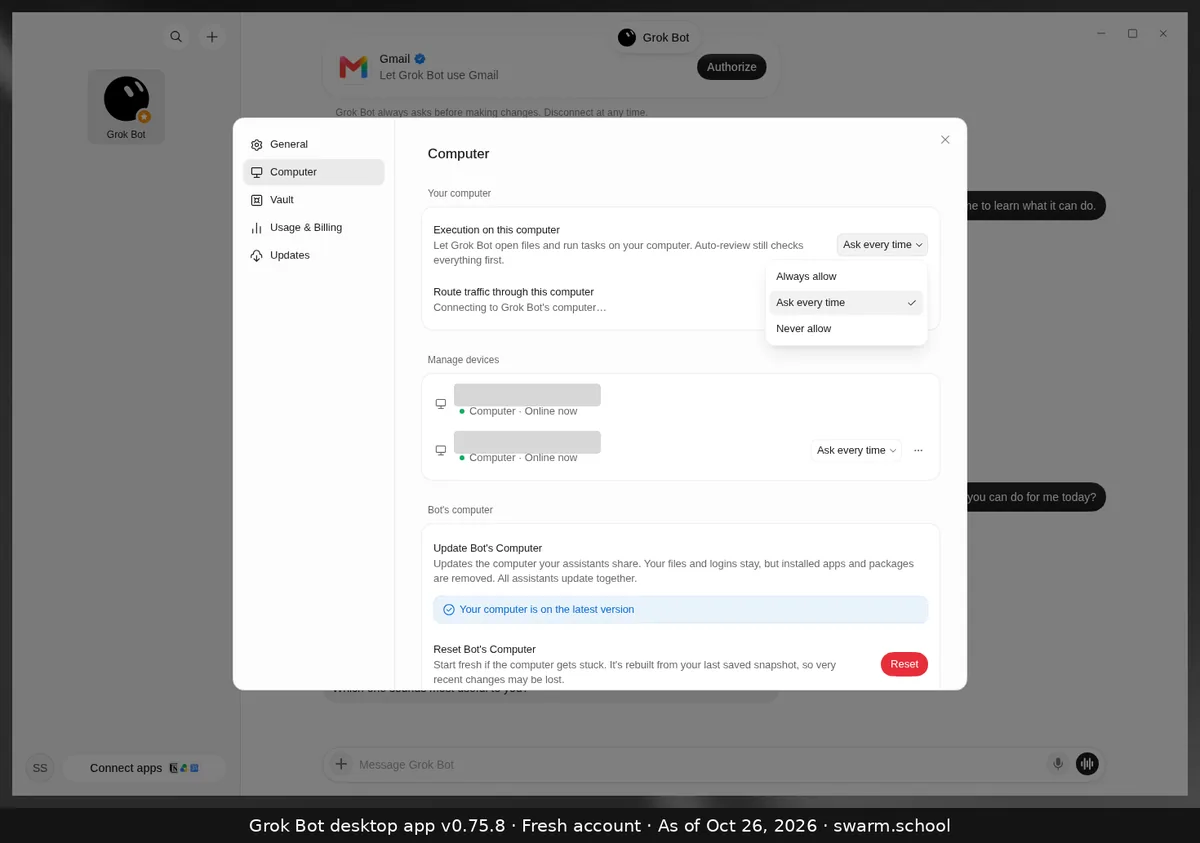
Bots work on their own cloud computer. Settings → Computer → Execution on this computer decides whether they can also act on yours. Choose Ask every time or Never allow unless a task really needs local files. See local execution.
6. One account, one computer
xAI’s FAQ says all your Bots share one cloud computer, with the same files, browser sessions and logins, and warns not to treat separate Bots as a security boundary. Connect only the apps your Bots need. See connectors.
7. Read a Bot’s work like a manager
Ask every Bot to report in this shape:
- Outcome first, in one or two lines.
- A link for every claim and file.
- PASS / OPEN / UNVERIFIED: done and checked, still to do, or not checked.
When you finish a task, report the outcome in two lines, then list each item as PASS (done and checked), OPEN (not done) or UNVERIFIED (done but not checked), with a link for each. Remember this.
FAQ
Is Grok Bot safe to connect to my email?
It can be, with Ask first on sending. The Gmail card says Grok Bot asks before making changes, and you can disconnect at any time.
Does Grok Bot see my passwords?
For logins saved in the Vault, the app says it can see them so it can type them in. It never sees a saved card’s number or security code. For a takeover sign-in, you type the password yourself.
Can I turn Auto-review off?
There’s a switch, but we recommend leaving it on.
Swarm School is an independent site. We’re not affiliated with xAI or Cursor.
Sources
- https://docs.x.ai/grok-bot/faq
- https://docs.x.ai/grok-bot/troubleshooting
- https://docs.x.ai/grok-bot/settings-and-notifications
Swarm School is independent and not affiliated with Grok Bot’s makers. Features change; check the official docs for current details.
Related guides
- What is Auto-review in Grok Bot?Auto-review checks each action before your Bot runs it and asks you first when needed.…
- How do I add custom rules to Grok Bot?In Settings → General → Bot → Custom Rules, describe an action in plain words, choose…
- What is the Grok Bot Vault, and how do I save a login?The Vault (Settings → Vault) stores logins, cards and contact info so a Bot can fill…
- Can Grok Bot use my own computer?Yes, if you allow it. Settings → Computer → Execution on this computer lets Bots open…