Short answer
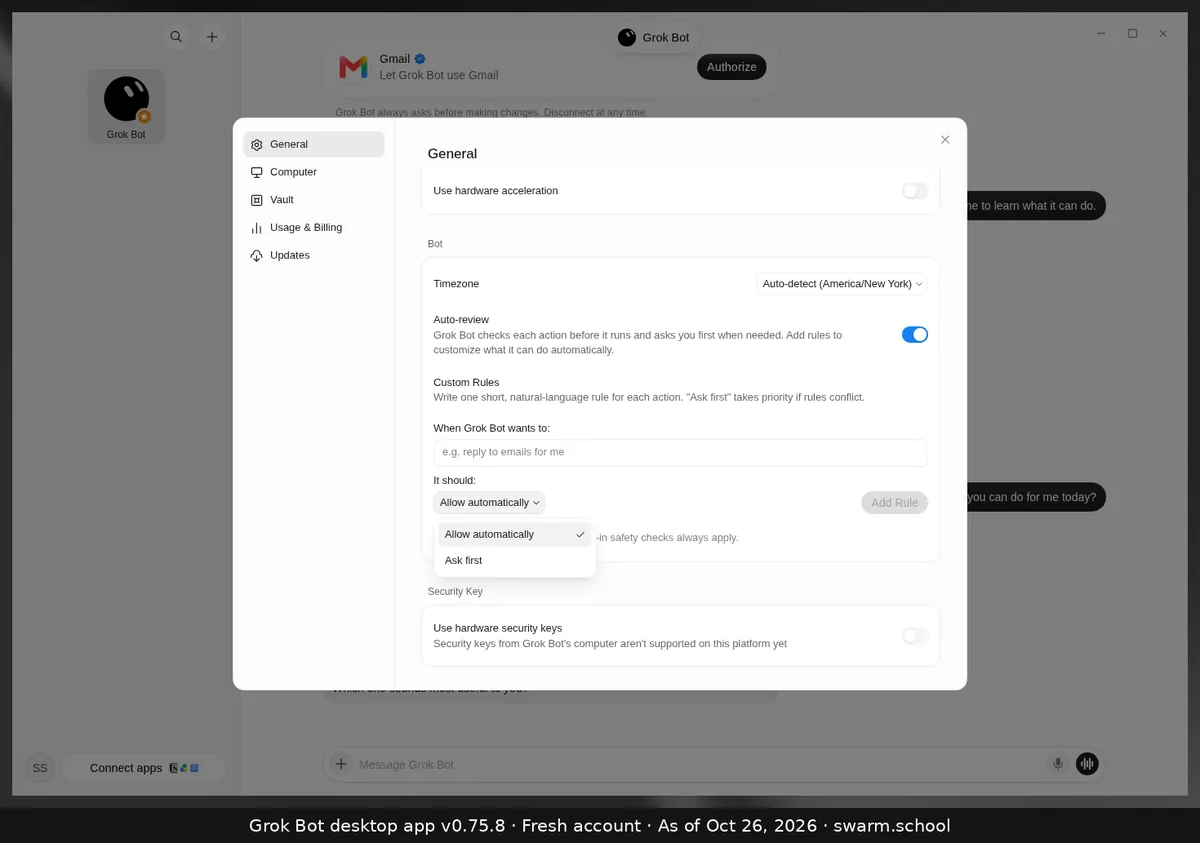
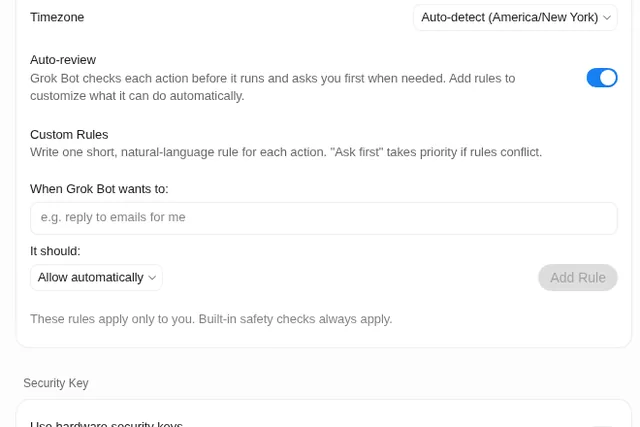
Open Settings → General and scroll to Custom Rules under Bot. Type the action in plain words under “When Grok Bot wants to:”, choose Allow automatically or Ask first under “It should:”, then click Add Rule.
As of Oct 26, 2026 (Grok Bot desktop app v0.75.8).
Steps
- Press Ctrl+, → General, then scroll to Custom Rules.
- Write one short rule per action, as the app asks. For example: “send an email”, “post on X”, “buy something”, “delete files”.
- Pick Ask first or Allow automatically, then click Add Rule.
Rules worth adding on day one
| When Grok Bot wants to… | It should |
|---|---|
| send an email or message | Ask first |
| post or publish anything | Ask first |
| buy, pay or book something | Ask first |
| delete files or records | Ask first |
Custom rules vs. custom instructions
Rules control what needs your OK. To change how a Bot works (tone, steps, format), tell it in chat and ask it to remember, or save a skill. Rules only work while Auto-review is on, and xAI notes that Ask first beats Allow automatically when rules conflict.
Sources
Swarm School is independent and not affiliated with Grok Bot’s makers. Features change; check the official docs for current details.
Related guides
- What is Auto-review in Grok Bot?Auto-review checks each action before your Bot runs it and asks you first when needed.…
- Where are Grok Bot's settings?Press Ctrl+, (Cmd+, on Mac) or open the account menu at the bottom left and choose…
- Grok Bot skillsA Grok Bot skill is saved instructions for one task. Learn the six parts of a good…
- Grok Bot memoryWhat a Grok Bot remembers, what belongs in memory vs. notes vs. skills, why big memory…