Short answer
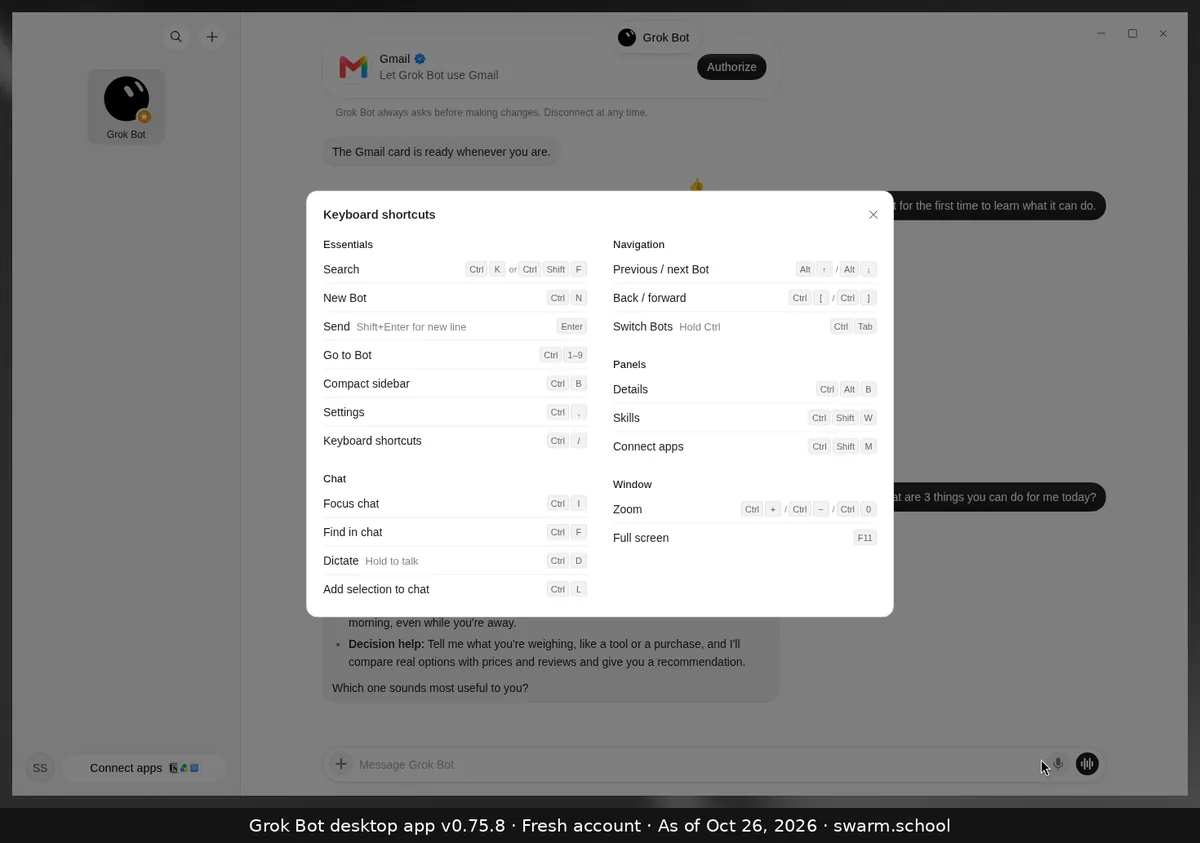
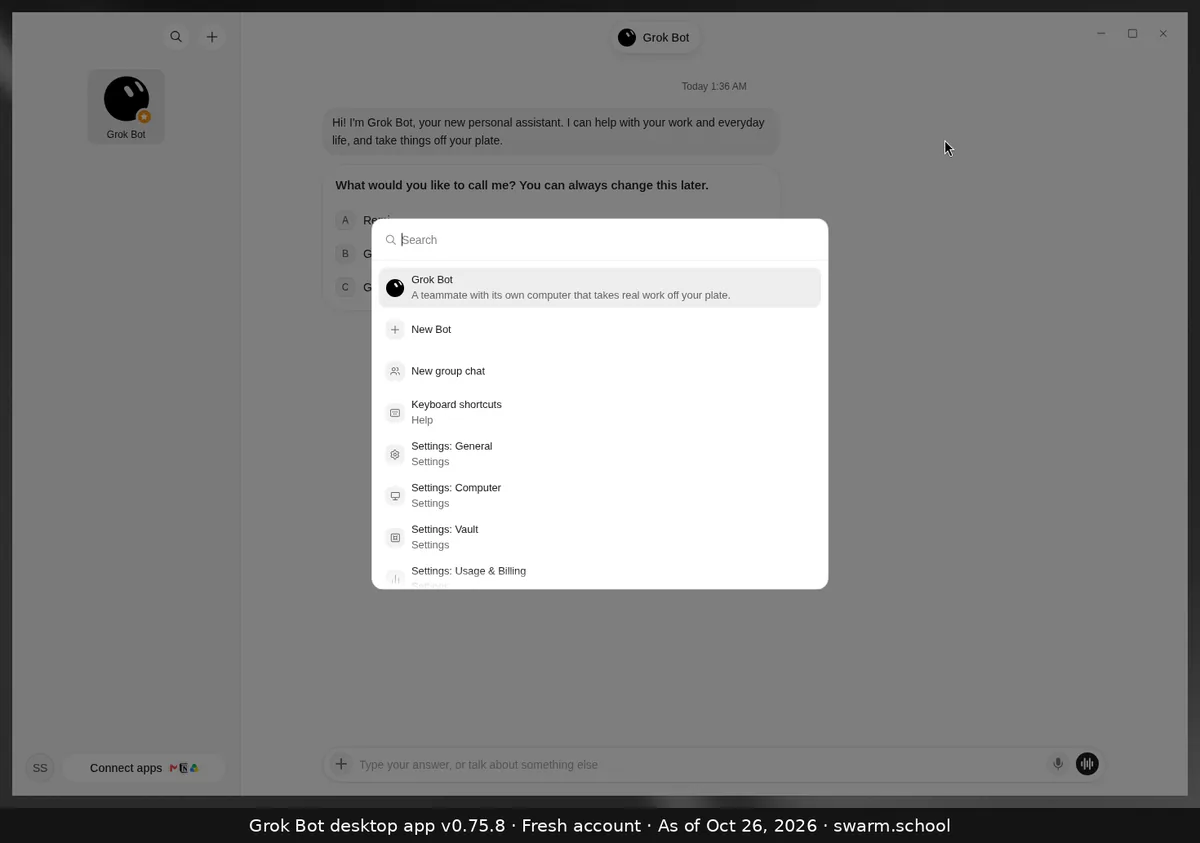
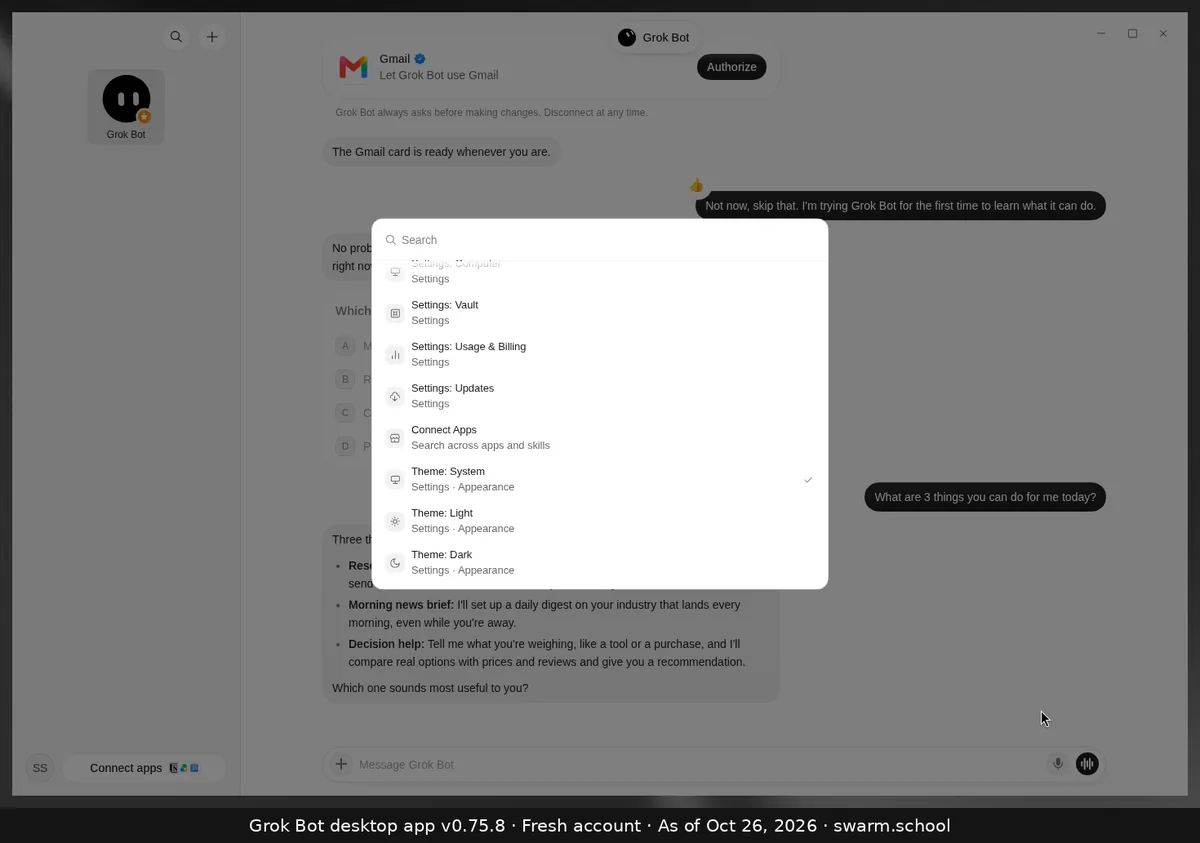
Press Ctrl+K (Cmd+K on Mac) to open a search menu that jumps to any Bot, setting or action. Press Ctrl+/ to see every shortcut. The ones you’ll use most: Ctrl+N for a new Bot, Ctrl+D to dictate and Ctrl+, for Settings.
As of Oct 26, 2026 (Grok Bot desktop app v0.75.8, Windows/Linux keys shown; use Cmd on Mac).
The shortcuts
| Do this | Press |
|---|---|
| Search / jump anywhere | Ctrl+K (or Ctrl+Shift+F) |
| New Bot | Ctrl+N |
| Go to Bot 1–9 | Ctrl+1 … 9 |
| Settings | Ctrl+, |
| All shortcuts | Ctrl+/ |
| Dictate (hold to talk) | Ctrl+D |
| Find in chat | Ctrl+F |
| Add selection to chat | Ctrl+L |
| Previous / next Bot | Alt+↑ / Alt+↓ |
| Switch Bots | Ctrl+Tab |
| Bot details panel | Ctrl+Alt+B |
| Skills panel | Ctrl+Shift+W |
| Connect apps | Ctrl+Shift+M |
| Compact sidebar | Ctrl+B |
| New line / Send | Shift+Enter / Enter |
Voice chat has no shortcut. Use the waveform button. See voice chat.
Sources
Swarm School is independent and not affiliated with Grok Bot’s makers. Features change; check the official docs for current details.
Related guides
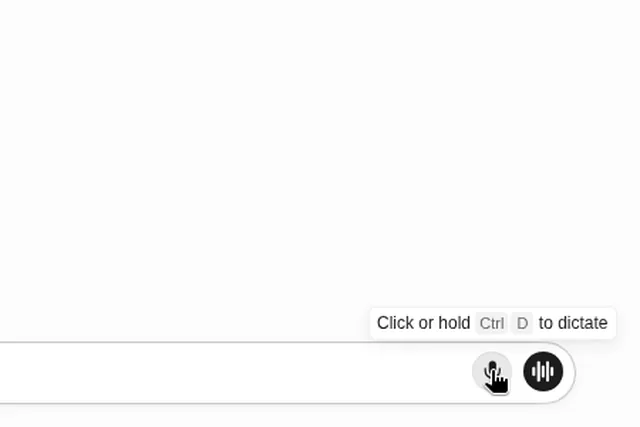
- How do I dictate to Grok Bot instead of typing?Click the microphone in the message box, or click or hold Ctrl+D (Cmd+D on Mac). Grok…
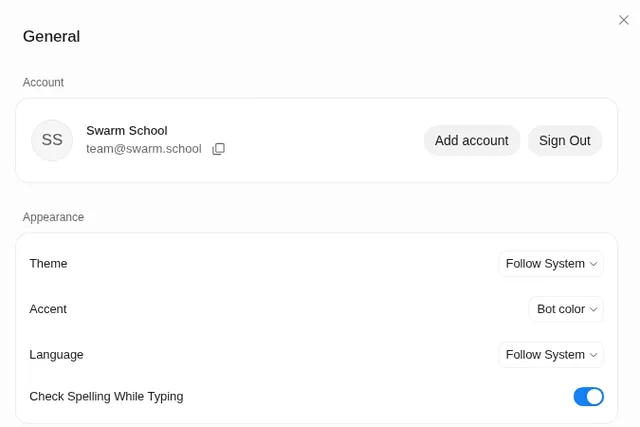
- Where are Grok Bot's settings?Press Ctrl+, (Cmd+, on Mac) or open the account menu at the bottom left and choose…
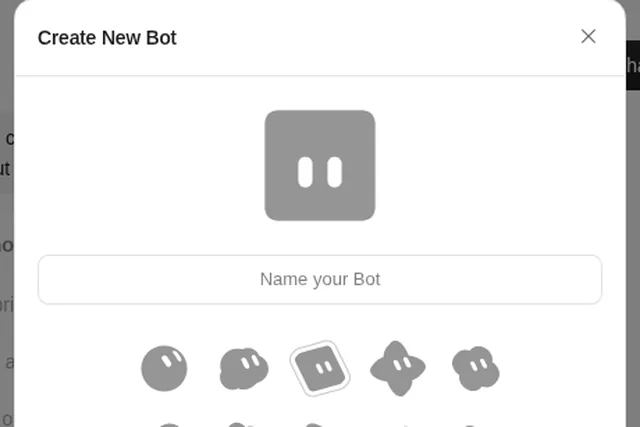
- How do I create a new Bot in Grok Bot?Press Ctrl+N (or use + at the top of the sidebar), name the Bot, pick a shape and…
- Where do I find my bot's files, details and computer?Click the Bot's name at the top of the chat (or press Ctrl+Alt+B). The info panel has…