Short answer
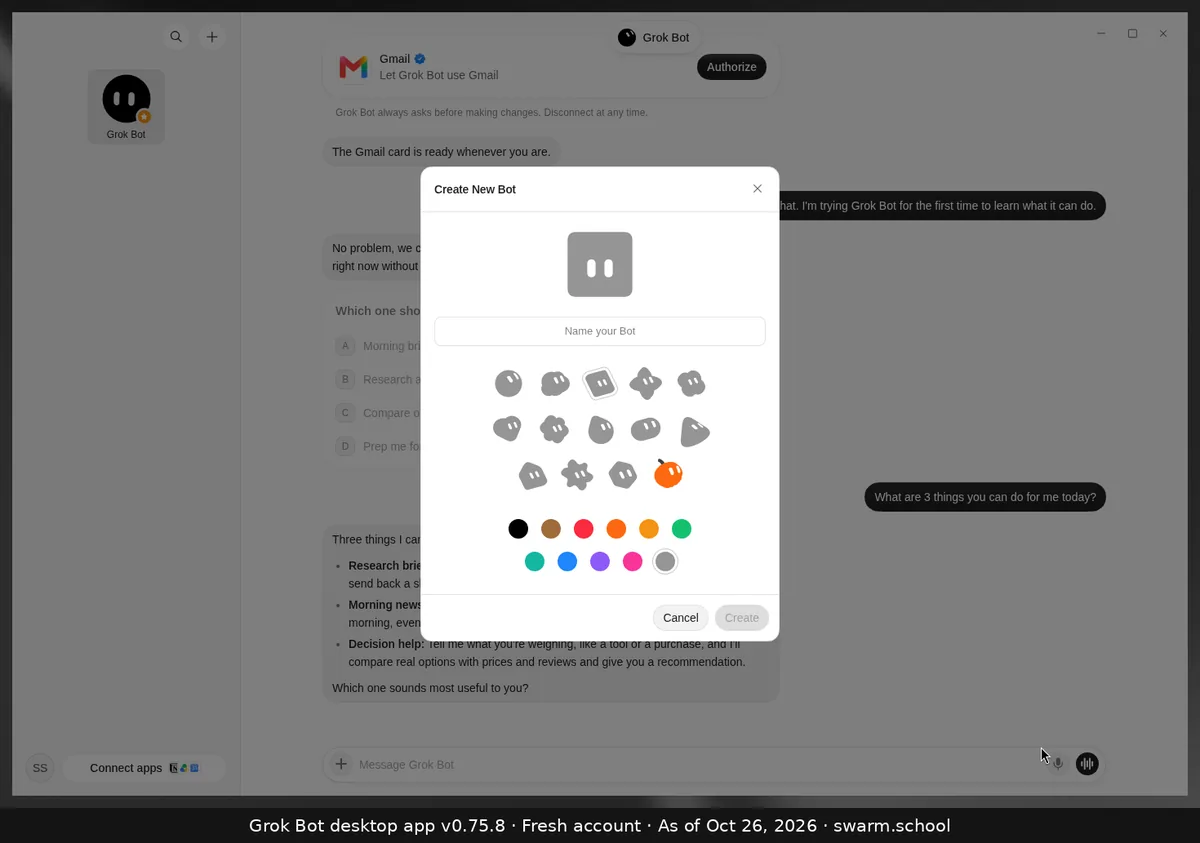
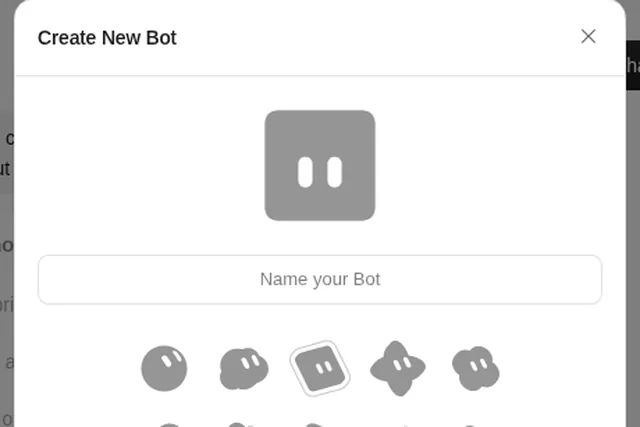
Press Ctrl+N (Cmd+N on Mac), or use the + at the top of the sidebar. In Create New Bot, type a name, pick a shape and a colour, and choose Create. Then give the new Bot its job in your first message.
As of Oct 26, 2026 (Grok Bot desktop app v0.75.8).
Steps
-
Press Ctrl+N, or click + at the top of the sidebar.
-
Name it after its job (“Inbox Triage”, not “Helper 2”), then pick a shape and colour so you can spot it in the sidebar.
-
Choose Create. In the first message, say what it owns, which apps it may use, and what it must never do without asking. End with “Remember this.”
A first message you can copy
Your job is my inbox. Each morning, sort new email into “needs me”, “FYI” and “noise”. Draft replies for “needs me” but never send anything without my OK. Remember this.
Good to know
- All your Bots share one cloud computer and your connected apps. A new Bot is a new job, not a security wall.
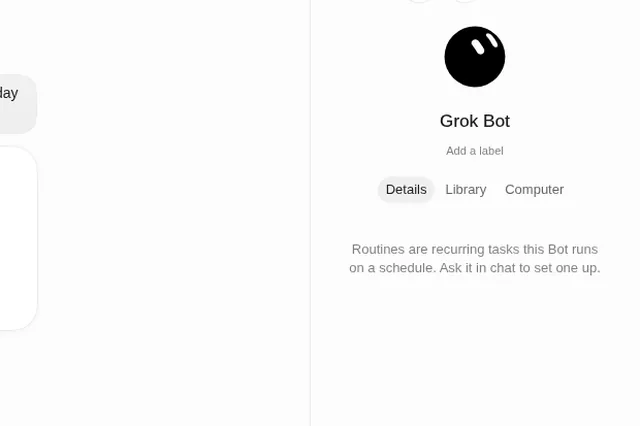
- You can change the name, label and avatar later from the Bot’s details. See the bot info panel.
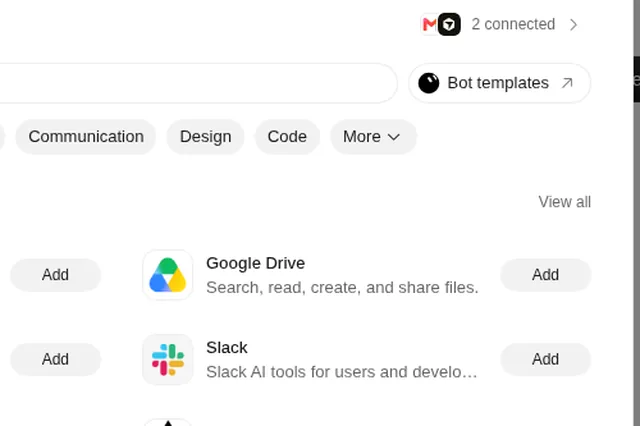
- Rather not start from scratch? Add a template and adjust it.
When to add a second or third Bot: Grok agents and running several Bots.
Sources
Swarm School is independent and not affiliated with Grok Bot’s makers. Features change; check the official docs for current details.
Related guides
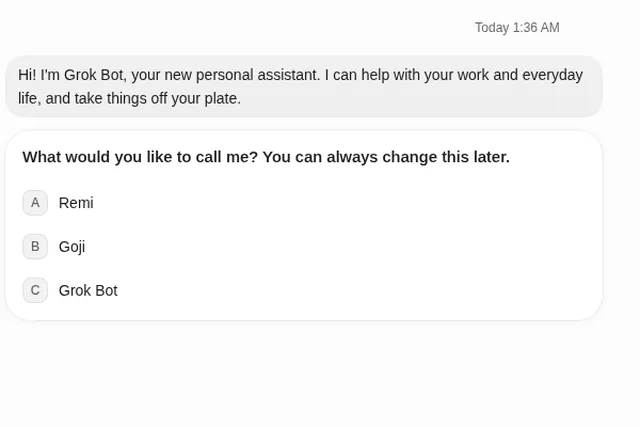
- What happens the first time you open Grok Bot?Your first Bot says hello, asks what to call it, offers to connect Gmail, and suggests…
- Where do I find my bot's files, details and computer?Click the Bot's name at the top of the chat (or press Ctrl+Alt+B). The info panel has…
- Grok agents explained"Grok agents" can mean three xAI things: Grok Bot's always-on Bots, the Grok API…
- Grok Bot templatesWhat a Grok Bot template includes and leaves out, a five-point check before you click…