Short answer
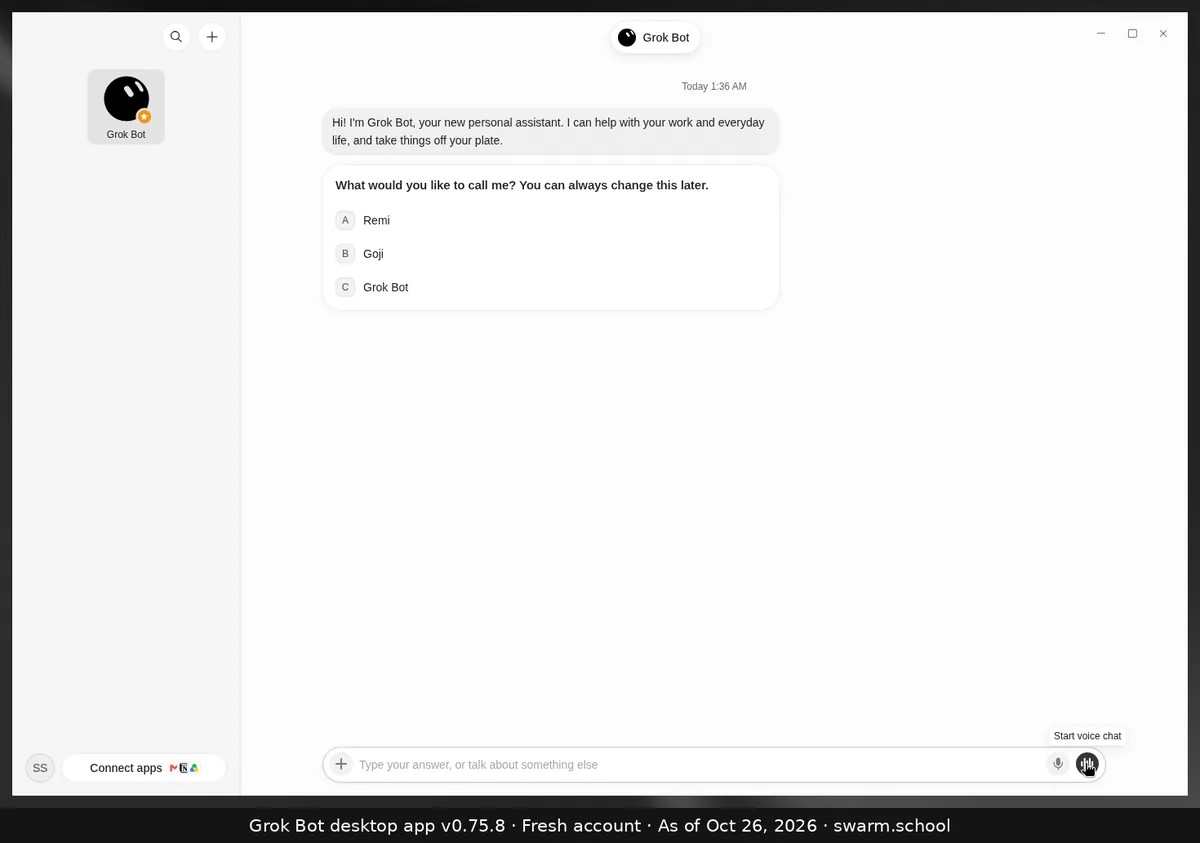
Open a Bot’s chat, leave the message box empty, and click the waveform button at the right end of the composer. Its tooltip says “Start voice chat”. Allow microphone access if asked. The Bot answers out loud and keeps listening until you hang up.
As of Oct 26, 2026 (Grok Bot desktop app v0.75.8).
Steps
- Open the chat with the Bot you want to talk to.
- Make sure the message box is empty. Cursor’s help says the button only shows then.
- Click Start voice chat. Desktop shows “Connecting…”, then the Bot starts talking.
During the call
- Mute / Unmute your microphone, or Hang up to end.
- Show transcript to read along.
- Show settings to change the Voice, Speed and Language. See how to change the voice.
- Only one voice chat runs at a time. Voice chat works on desktop and on the phone app.
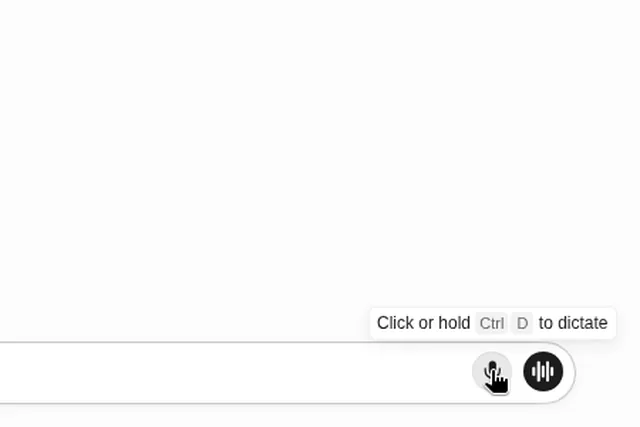
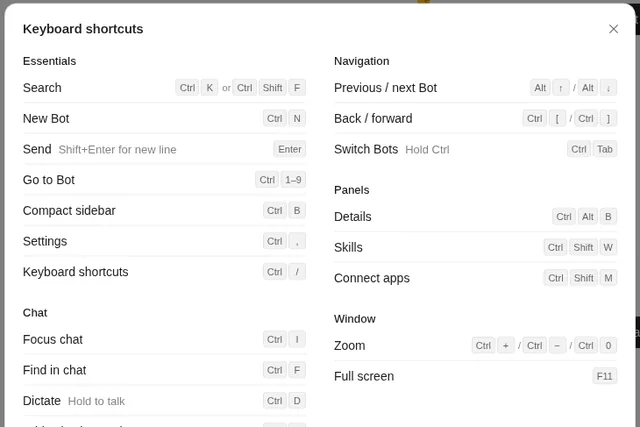
Voice chat or dictation? Voice chat is a live conversation. Dictation types your words into the box so you can edit them before sending. The waveform button has no keyboard shortcut, while dictation is Ctrl+D (Cmd+D on Mac).
Sources
Swarm School is independent and not affiliated with Grok Bot’s makers. Features change; check the official docs for current details.
Related guides
- How do I change Grok Bot's voice?Start a voice chat, then choose Show settings during the call to change the Bot's…
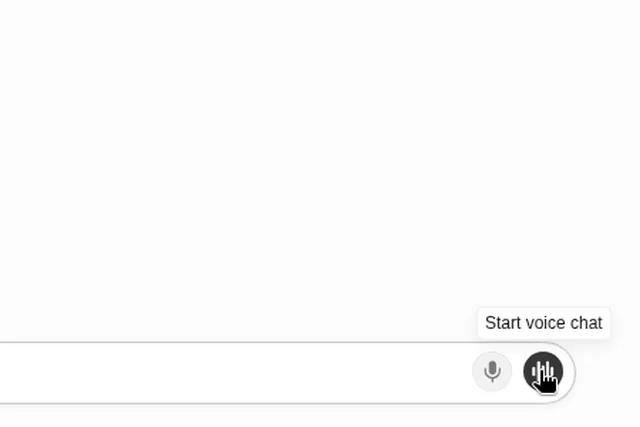
- How do I dictate to Grok Bot instead of typing?Click the microphone in the message box, or click or hold Ctrl+D (Cmd+D on Mac). Grok…
- What are Grok Bot's keyboard shortcuts?Every Grok Bot desktop shortcut on one page: Ctrl+K search, Ctrl+N new Bot, Ctrl+D…
- Can I use Grok Bot on my phone?Yes. Grok Bot has a companion app for iPhone (iOS 18+) and Android (9+). Your Bots and…