Short answer
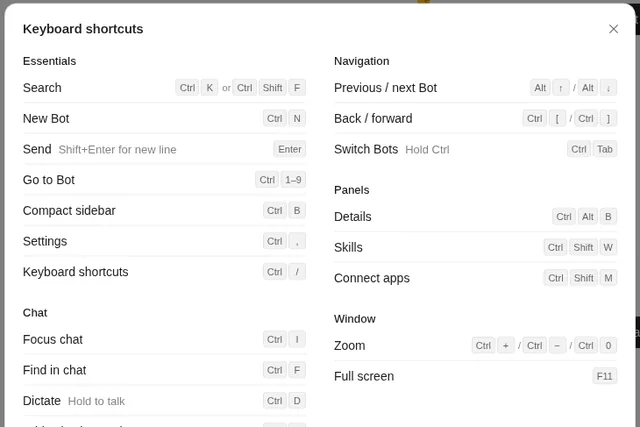
Click the Bot’s name at the top of the chat, or press Ctrl+Alt+B. A panel opens on the right with three tabs: Details, Library and Computer. Right-click a Bot in the sidebar for quick actions like hiding it.
As of Oct 26, 2026 (Grok Bot desktop app v0.75.8).
The three tabs
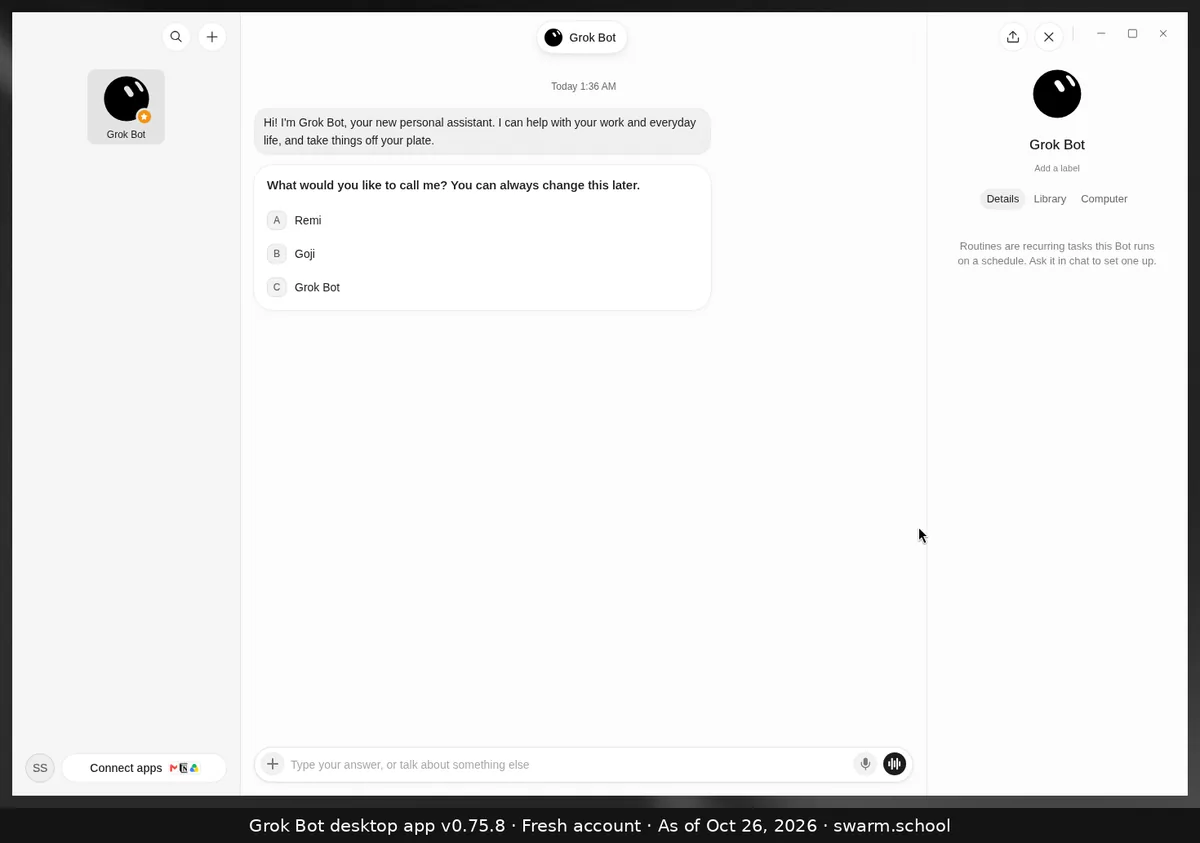
| Tab | What’s there |
|---|---|
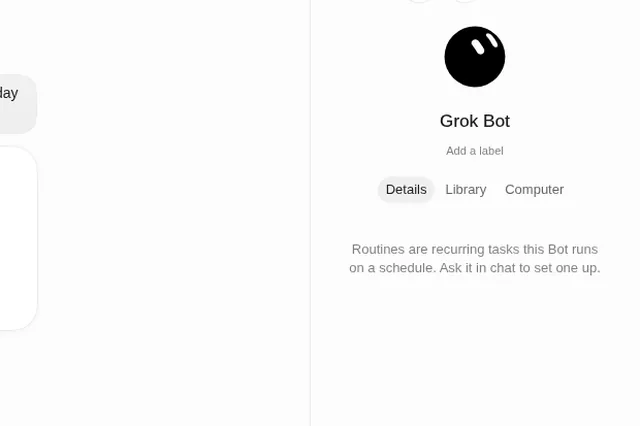
| Details | The Bot’s routines. To add one, ask the Bot in chat. |
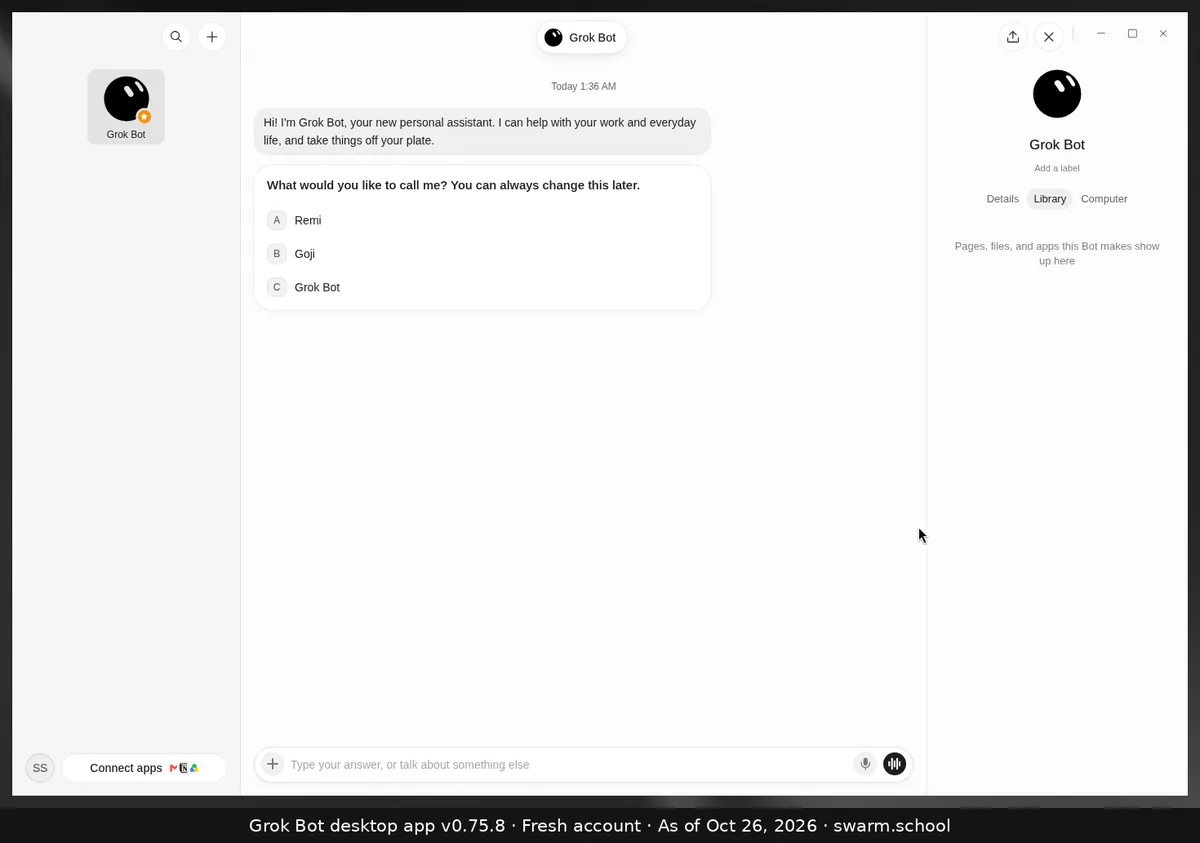
| Library | “Pages, files, and apps this Bot makes” |
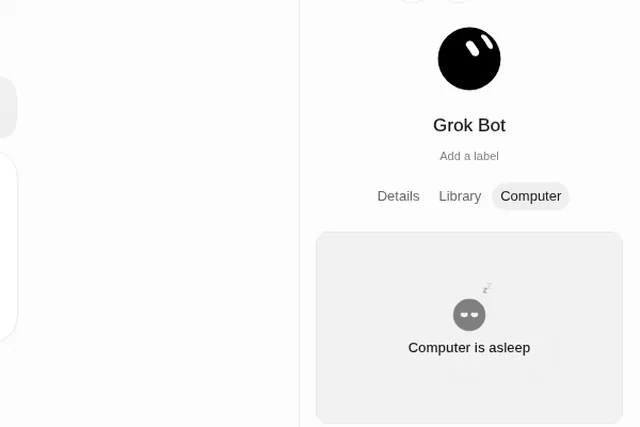
| Computer | The Bot’s screen, so you can watch it work. It may say Computer is asleep. |
You can also add a label under the name. The share button at the top of the panel is where templates start. See sharing templates.
Right-click a Bot in the sidebar
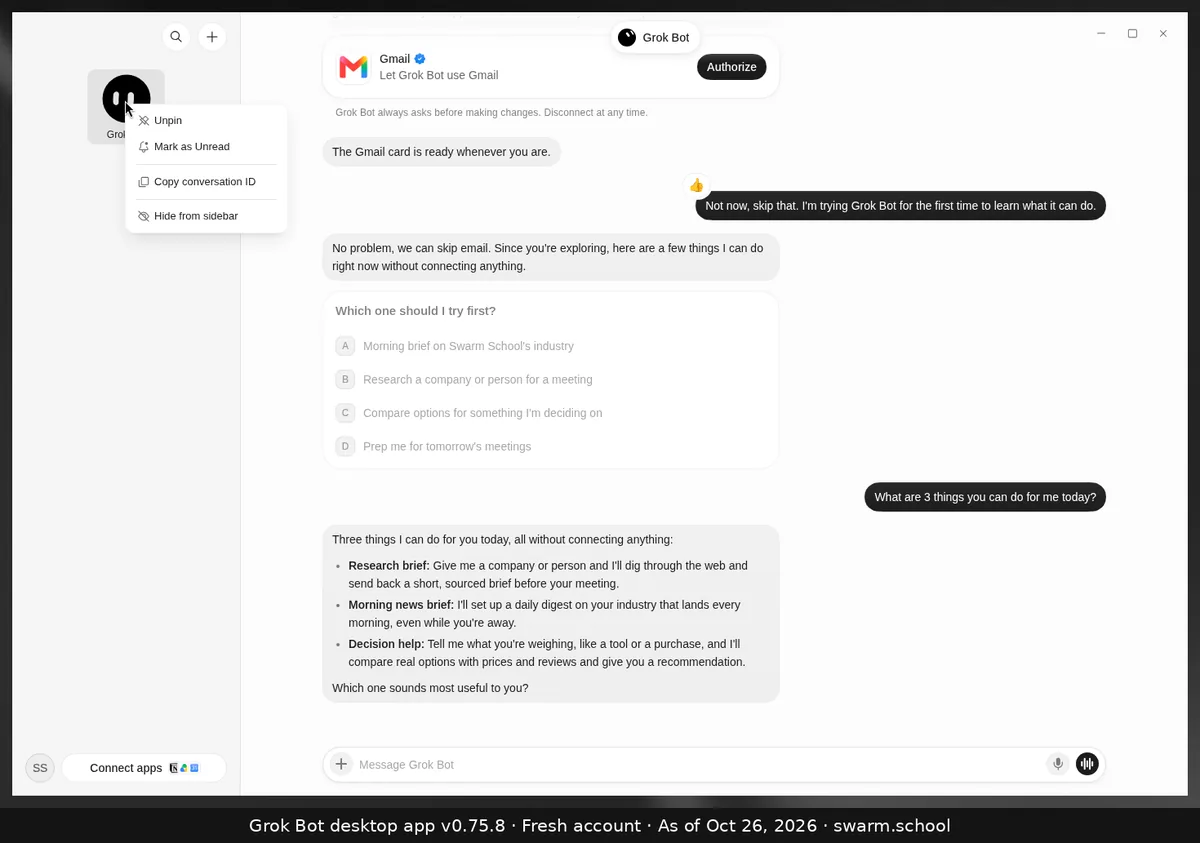
You get Unpin, Mark as Unread, Copy conversation ID (useful when you contact support) and Hide from sidebar. xAI suggests hiding a Bot rather than deleting it if you might need its work later.
Sources
Swarm School is independent and not affiliated with Grok Bot’s makers. Features change; check the official docs for current details.
Related guides
- Why does Grok Bot say "Computer is asleep"?"Computer is asleep" in a Bot's Computer tab shows that the Bot's cloud computer isn't…
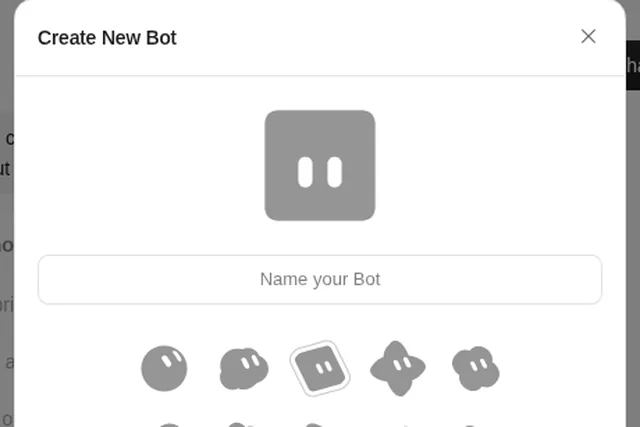
- How do I create a new Bot in Grok Bot?Press Ctrl+N (or use + at the top of the sidebar), name the Bot, pick a shape and…
- Why isn't my Grok Bot routine running?Most routines stop because they're paused, the time zone is wrong, an app got signed…
- What are Grok Bot's keyboard shortcuts?Every Grok Bot desktop shortcut on one page: Ctrl+K search, Ctrl+N new Bot, Ctrl+D…