Short answer
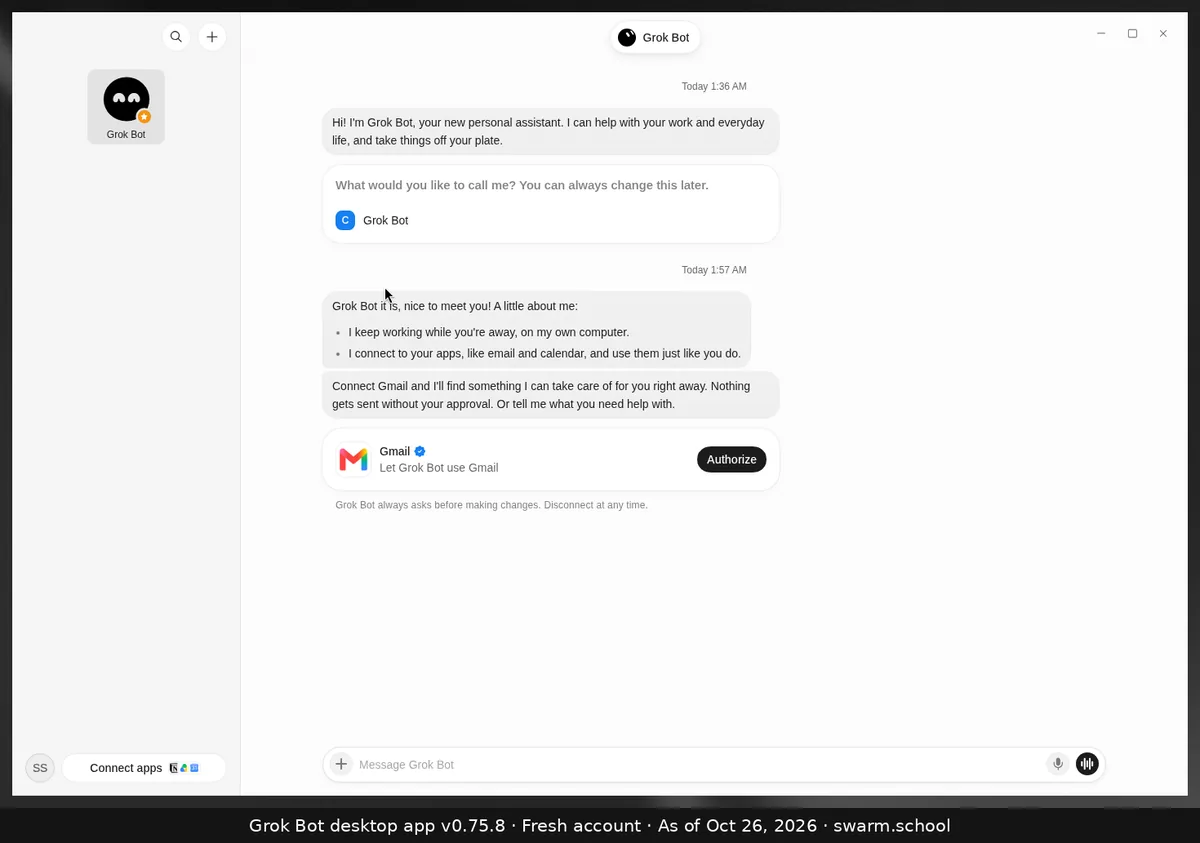
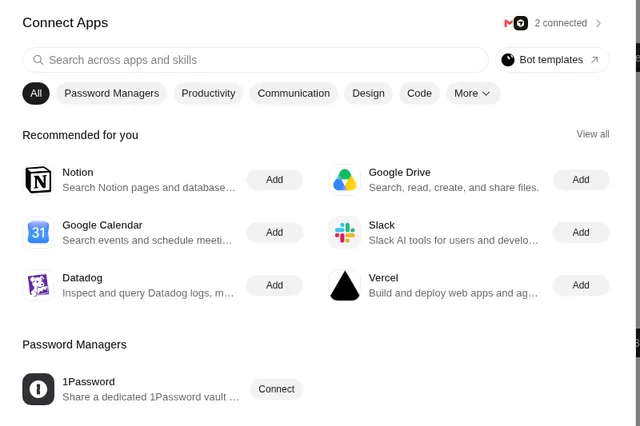
Click Connect apps at the bottom of the sidebar, search for the app, choose Add and sign in to your account in the browser window that opens. For Gmail there’s a shortcut: your first Bot offers a Gmail card in chat, and Authorize does the same thing.
As of Oct 26, 2026 (Grok Bot desktop app v0.75.8).
Steps
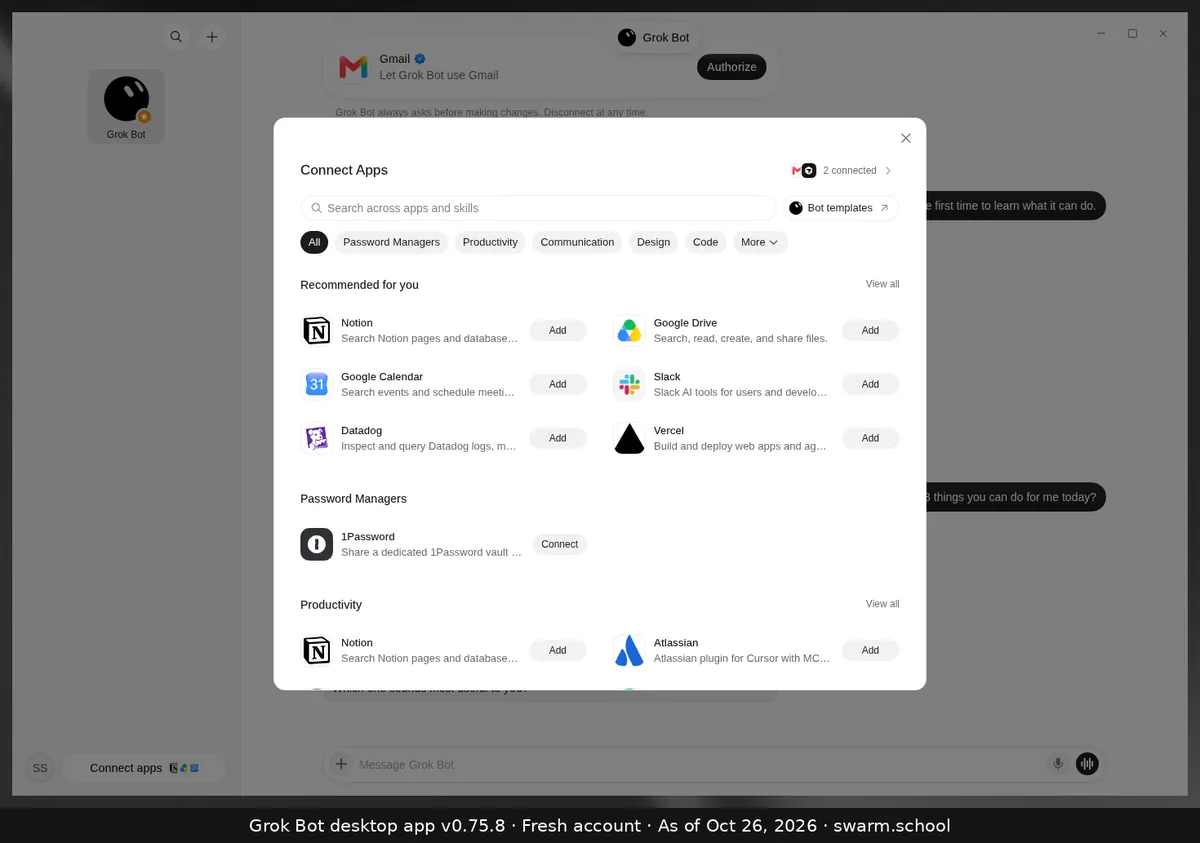
- Click Connect apps at the bottom left (or press Ctrl+Shift+M).
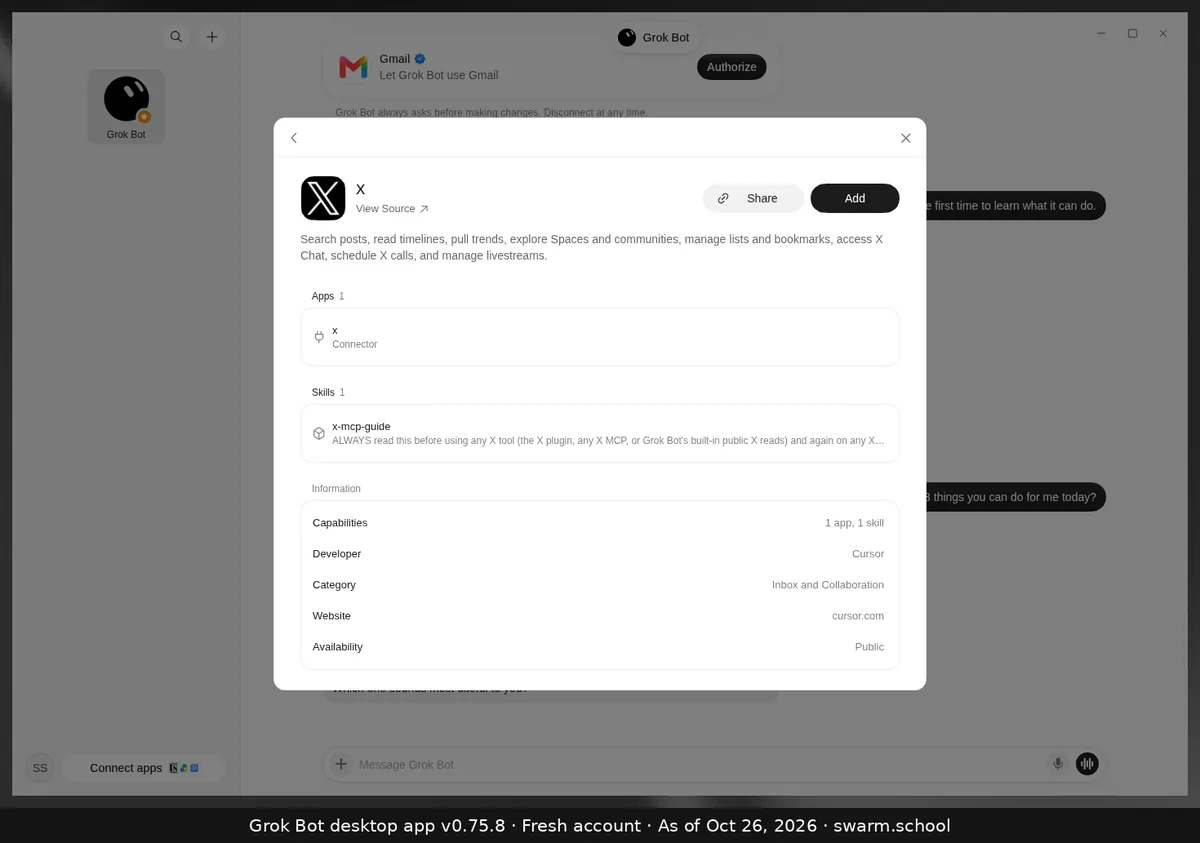
- Search or browse by category, then click the app to see what it can do.
- Choose Add and sign in. Return to Grok Bot when the browser says you’re done.
Before you connect
- A connected app can be used by every Bot on your account, so connect only what your Bots need.
- The Gmail card says Grok Bot asks before making changes, and you can disconnect at any time.
- If a Bot says an app is missing, open it in Connect apps and sign in again.
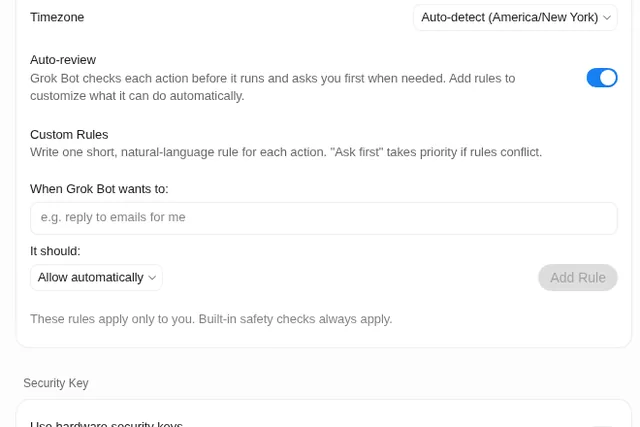
Review Auto-review and approval settings before giving an app access.
See the full list in Grok Bot connectors.
Sources
Swarm School is independent and not affiliated with Grok Bot’s makers. Features change; check the official docs for current details.
Related guides
- Grok Bot connectorsEvery Grok Bot connector we could confirm in xAI's and Cursor's docs, what each one…
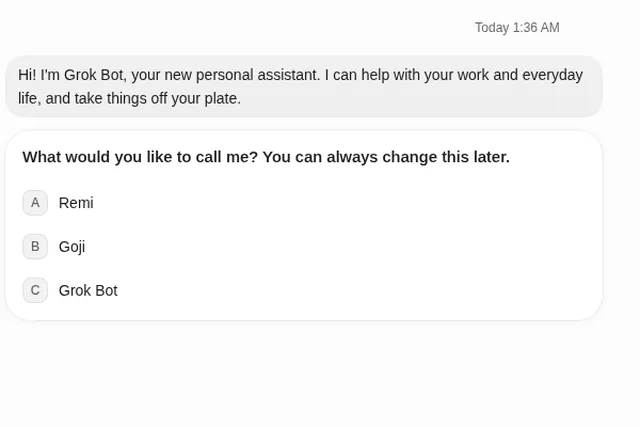
- What happens the first time you open Grok Bot?Your first Bot says hello, asks what to call it, offers to connect Gmail, and suggests…
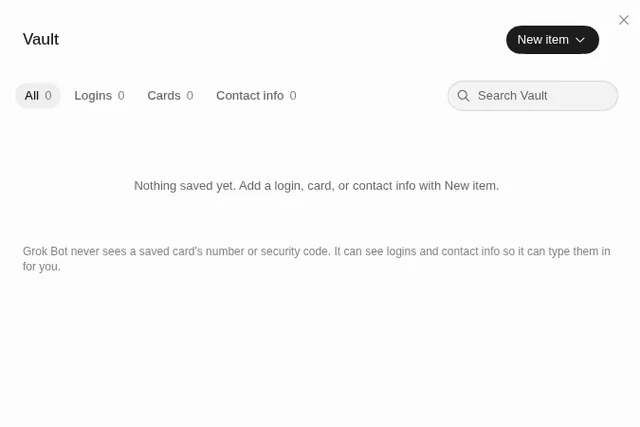
- What is the Grok Bot Vault, and how do I save a login?The Vault (Settings → Vault) stores logins, cards and contact info so a Bot can fill…
- Keeping Grok Bot safeHow to keep Grok Bot safe: leave Auto-review on, add Ask first rules, keep passwords…