Short answer
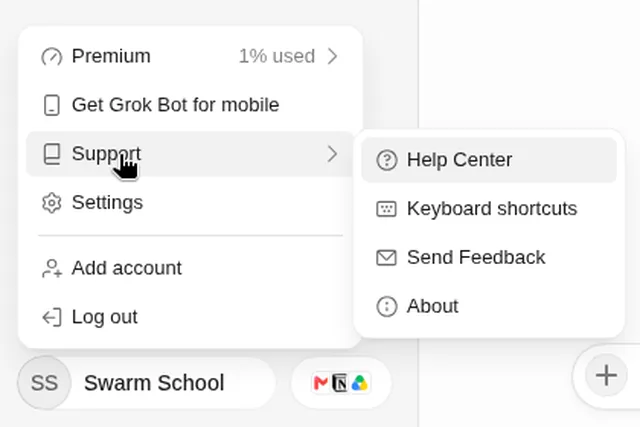
Open Settings → Updates and choose Check for Updates. If an update is ready, choose Restart to Update. With Automatic Updates on, the app updates itself while you’re away. The Bot’s cloud computer has its own update in Settings → Computer.
As of Oct 26, 2026 (Grok Bot desktop app v0.75.8).
Update the app
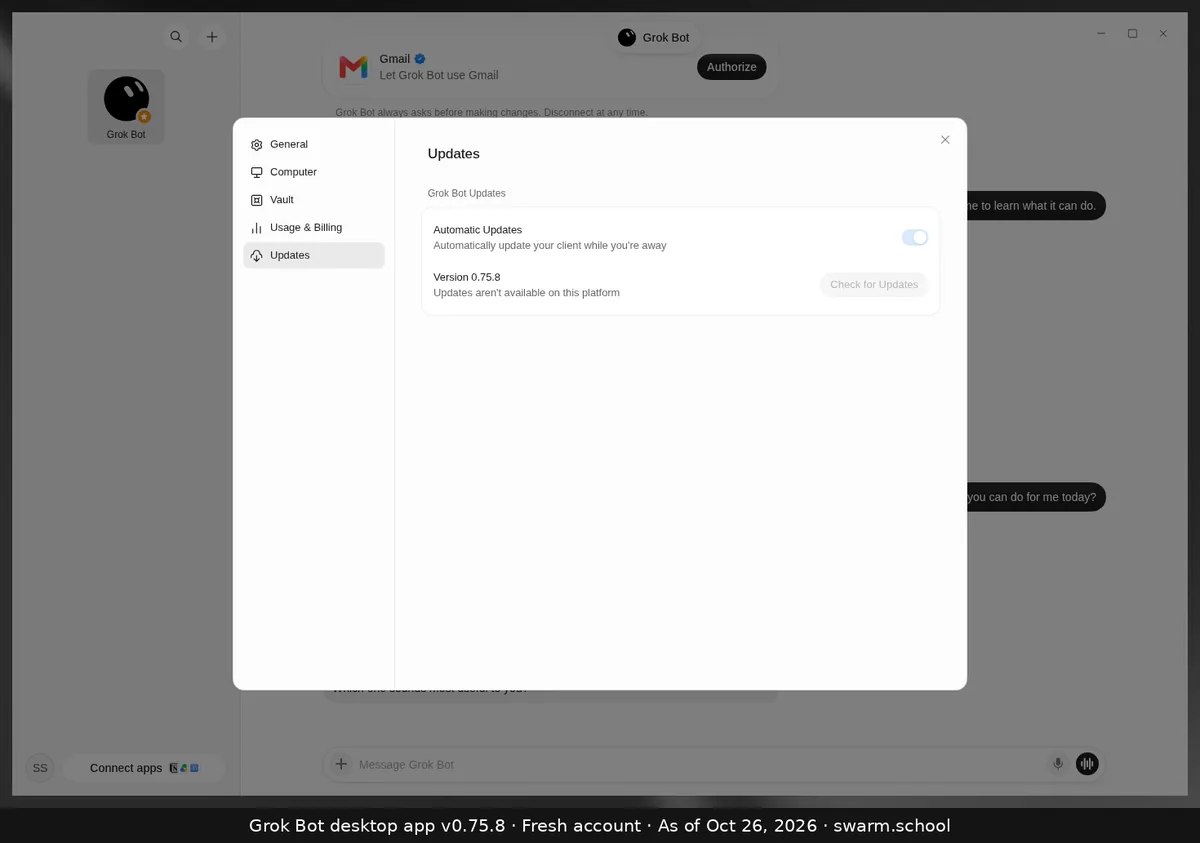
- Press Ctrl+, and choose Updates.
- Click Check for Updates, then Restart to Update if one is ready.
- Your version number is shown there too. Ours was 0.75.8.
On our Linux test machine the page said “Updates aren’t available on this platform”, so how you update may depend on how you installed the app. If in doubt, download the latest build from x.ai/bot.
Update the Bot’s computer (separate)
If the cloud computer is stuck or out of date, open Settings → Computer → Update Bot’s Computer. The app says your files and logins stay, but installed apps and packages are removed, and all your Bots update together. Updating the app doesn’t reset this computer.
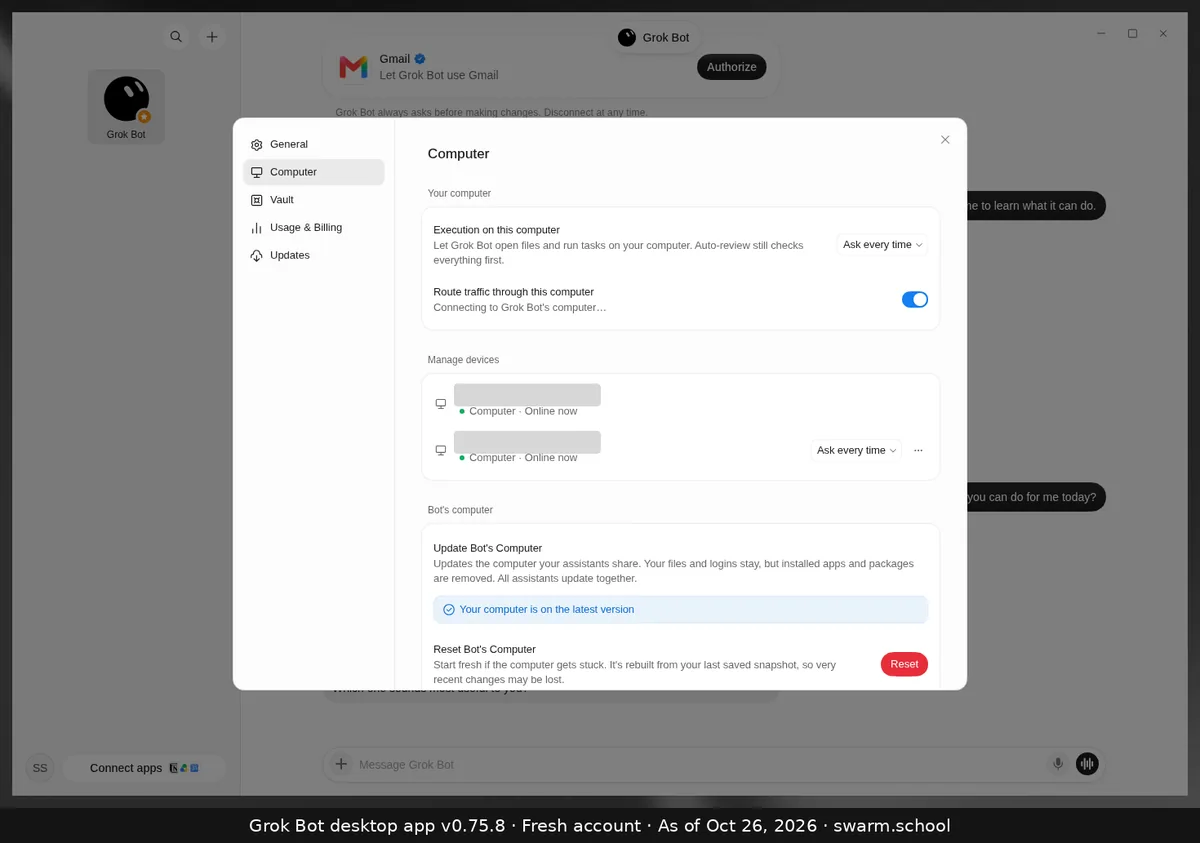
Reset is the last resort: it rebuilds from your last saved snapshot, so recent changes may be lost. See Grok Bot errors.
Sources
Swarm School is independent and not affiliated with Grok Bot’s makers. Features change; check the official docs for current details.
Related guides
- Where are Grok Bot's settings?Press Ctrl+, (Cmd+, on Mac) or open the account menu at the bottom left and choose…
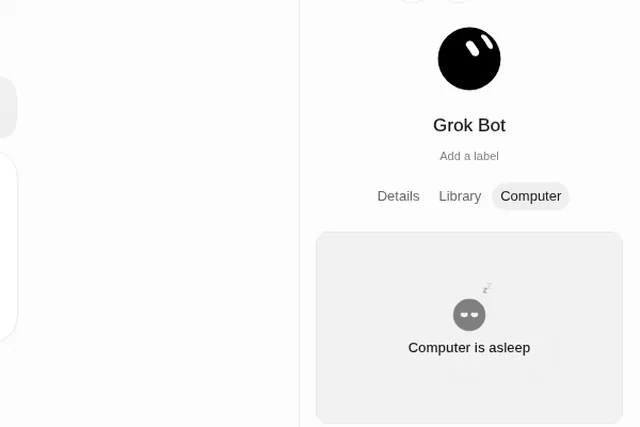
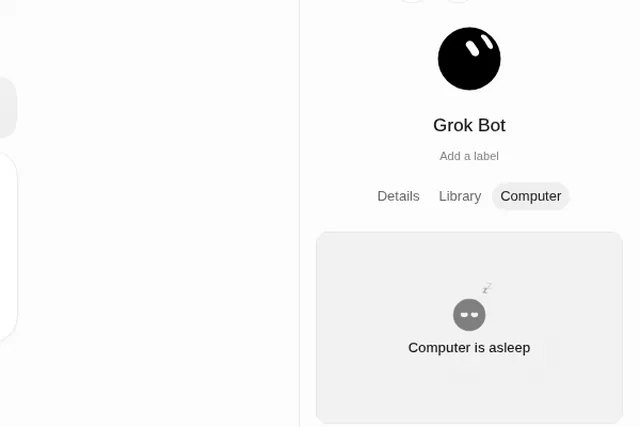
- Why does Grok Bot say "Computer is asleep"?"Computer is asleep" in a Bot's Computer tab shows that the Bot's cloud computer isn't…
- Grok Bot error messages explained (and fixes)What Grok Bot error messages mean and how to fix them, from usage limits and…
- Is Grok Bot down? How to check and what to doIs Grok Bot down or is it just you? Check the official status page in 10 seconds, then…