Short answer
Open the Grok Bot app, choose Sign in, and finish signing in in your browser. Grok Bot uses your Cursor account. Then return to the app, which picks up the sign-in.
As of Oct 26, 2026 (Grok Bot desktop app v0.75.8).
Steps
- Open Grok Bot and choose Sign in.
- Finish signing in in the browser window that opens. Keep the app open while you do.
- If the app doesn’t come back to the front, switch to it yourself.
If it doesn’t work
xAI’s troubleshooting page suggests:
- Check that the browser shows a successful Cursor sign-in, then choose Sign in again.
- Company login (SSO)? Use your organization’s login, not a personal account.
- A “Legacy Privacy Mode” error means the account’s data setting doesn’t allow Grok Bot. Change it in your Cursor account or ask your admin.
- Make sure your plan includes Grok Bot. See pricing.
Switch, add or sign out of accounts
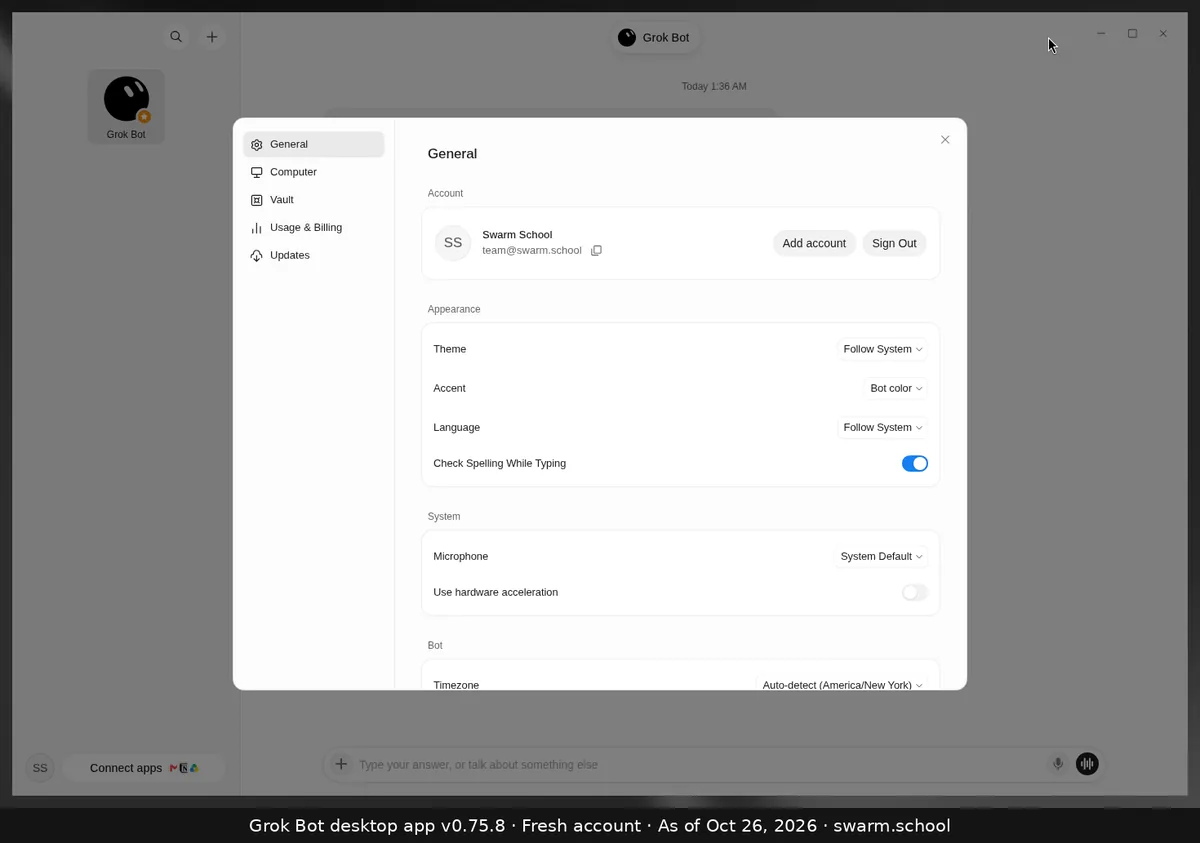
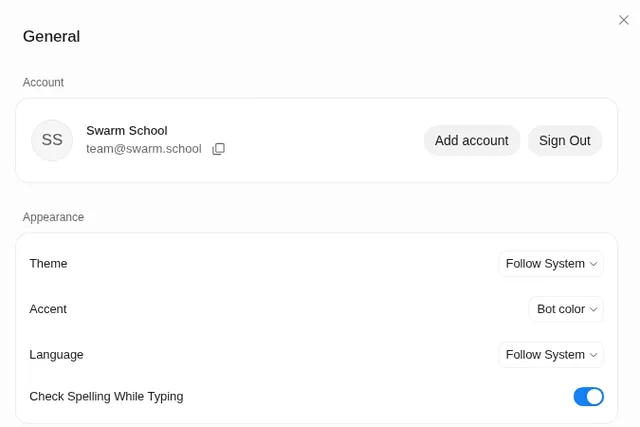
Your account is at the top of Settings → General, with Add account and Sign Out. The account menu at the bottom left also has Add account and Log out.
Sources
Swarm School is independent and not affiliated with Grok Bot’s makers. Features change; check the official docs for current details.
Related guides
- How do I download Grok Bot for Mac or Windows?Download Grok Bot from x.ai/bot. The desktop app runs on macOS (Apple silicon and…
- What happens the first time you open Grok Bot?Your first Bot says hello, asks what to call it, offers to connect Gmail, and suggests…
- Where are Grok Bot's settings?Press Ctrl+, (Cmd+, on Mac) or open the account menu at the bottom left and choose…
- Grok Bot error messages explained (and fixes)What Grok Bot error messages mean and how to fix them, from usage limits and…