Guide
Add Grok Bot Skills From a Zip
Every bot needs this.
Short answer: add the bot, download its zip, then in the bot’s chat click + then Attach files, pick the zip and send “Install everything in this zip.”
Four Steps
- 1
Add the bot.
- 2
Download its zip.
- 3
In the bot’s chat, click + > Attach files and pick the zip.
- 4
Send “Install everything in this zip.”
What It Looks Like

1Click + then Attach files Pick the zip you downloaded from the bot’s page. 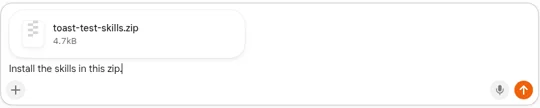
2Add the message and send The zip shows above the message as a file chip. 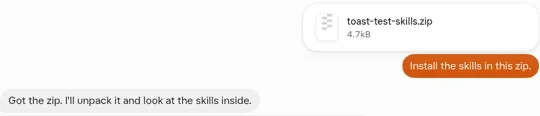
3The bot unpacks it In our test it saved both skills in about 45 seconds, with no approval card. 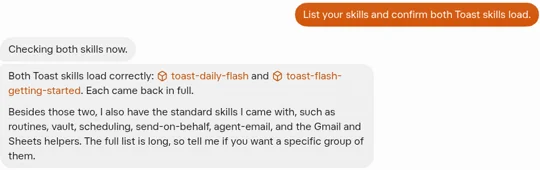
4Ask it to list its skills It names the new skills, so you know they loaded.


Real screenshots of the Grok Bot desktop app, Oct 26–27, 2026, from our install test with a sample bot. That test used an earlier message, “Install the skills in this zip.”
What to Send
Install everything in this zip.
To check, send “List your skills.” Then run the bot’s first test on sample data. New to skills? Read Grok Bot skills explained, install templates safely or the beginner guide, or browse the bots.
Common Questions
Why do I need the zip?
Adding a bot only brings its name and description. The zip adds everything else it needs to do its job.
Can I drag the zip into the chat instead?
Maybe. We couldn’t confirm drag and drop in our test, so use + then Attach files.
How do I know it worked?
Send “List your skills.” The bot names what it installed.
What if my skills are full?
Each Grok Bot account holds a limited number of skills, shared by all its bots. Remove ones you don’t use, then try again.
Get the free 14-page setup guide. The 9 setups most Grok Bot users skip, with a copy-paste prompt for each. Free PDF.
Send Me the Free PDF